Arknights: Endfield is a visually dense game built on Unreal Engine 5 and without the right settings, even mid-range hardware can choke during combat. Whether you’re hitting a 45 FPS wall, watching frames collapse in effect-heavy fights, or just trying to keep latency consistent, the culprit is rarely obvious. Most players chase the wrong fix first: lowering resolution when shadows are the real drain, enabling DLSS without turning V-Sync off, or blaming the GPU when RAM paging is the actual bottleneck. This guide covers every angle so you don’t waste time on the wrong lever.
📋 Table of Contents
If you’re in a hurry, start here:
- Drop Shadow Quality to Medium before touching anything else it’s the single highest-impact setting in Endfield by a wide margin
- Enable DLSS Quality or FSR Quality if you have a compatible GPU; the FPS gain is immediate and the visual cost is minimal at 1080p
- Turn V-Sync off and set a manual FPS cap at your monitor’s refresh rate minus 3
- Disable every overlay , Discord, Xbox Game Bar, GeForce Experience, Steam all of them contribute to micro-stutter in UE5 titles
We cover every angle below, from free settings tweaks to tested hardware recommendations, with dedicated guides for each. Work through the sections relevant to your problem and you’ll leave with a stable, optimized setup regardless of what hardware you’re running.

Grab Your 6★ Weapon Before It's Gone!
- Free-to-play strategy
- Optimized for Windows PC

Start With 10,000+ Oroberyls , Hit Play!
- Arknights: Endfield — Free on PC. 10,000
- Oroberyls up for grabs.

Your Squad's Waiting. Jump In Free!
- New Homecoming Expansion: 2 Maps, 2 Operators, 1 Free 6★ Weapon: $0.
- Action RPG - Base Building on PC-Play Free, Keep Your Progress on Mobile.
System requirements and real-world FPS tiers
The official minimum and recommended specs for Endfield give you a starting point, but they don’t tell you what to actually expect at different settings tiers. Here’s the realistic picture based on testing across hardware configurations.
Official specs:
| Tier | CPU | GPU | RAM | Storage |
|---|---|---|---|---|
| Minimum | Intel i5-8600K / AMD Ryzen 5 3600 | GTX 1070 / RX 5700 | 16GB | HDD |
| Recommended | Intel i7-10700K / AMD Ryzen 7 5800X | RTX 3080 / RX 6800 XT | 16GB | SSD |
The minimum spec will run Endfield, but not smoothly at 1080p without significant settings cuts. A GTX 1070 on Low settings with FSR Quality enabled will land in the 40-55 FPS range in most areas, dropping further in heavy combat. The recommended spec is more honest an RTX 3080 on High settings at 1080p delivers stable 60 FPS with headroom.
Real-world FPS tiers at 1080p:
| GPU Tier | Low Settings | Medium Settings | High + DLSS Quality | Notes |
|---|---|---|---|---|
| GTX 1060 / RX 580 | 35-45 FPS | 25-35 FPS | N/A (no DLSS) | FSR Quality adds ~30% on AMD |
| RTX 3060 / RX 6600 XT | 65-75 FPS | 50-60 FPS | 85-95 FPS | DLSS Quality recommended |
| RTX 3080 / RX 6800 XT | 90-105 FPS | 75-90 FPS | 115-130 FPS | Comfortable 1080p high-refresh |
| RTX 4070 / RX 7800 XT | 110-130 FPS | 95-110 FPS | 130-150 FPS | Strong 1440p capable |
At 1440p, expect roughly 30-40% lower native FPS than 1080p on equivalent settings. DLSS Quality at 1440p renders internally at approximately 960p, which brings GPU demand back down significantly and is the recommended approach for anything below an RTX 4080.
Is Endfield CPU or GPU limited?
Both, but the GPU is the primary bottleneck in the vast majority of configurations. During combat specifically, Endfield’s particle systems and ability effects are GPU-heavy. Open-world traversal and zone transitions add CPU load, but even on a mid-range CPU like a Ryzen 5 5600, a GPU bottleneck appears before a CPU one at 1080p and 1440p on most settings combinations.
CPU limitations tend to surface in two specific situations: systems with CPUs below 6 cores, and systems where a single core hits 100% during ability-heavy combat. If you see GPU usage drop during combat while FPS also drops, that’s often a CPU feeding the GPU too slowly rather than a GPU-side problem.
The practical implication: prioritize GPU-side settings first (shadows, ambient occlusion, reflections) before touching CPU-adjacent ones (particle quality, physics).
Is Arknights: Endfield CPU-heavy or GPU-heavy?
Understanding which component is your actual bottleneck changes everything about how you prioritize settings. Spending 20 minutes tweaking shadow cascades when your CPU is the ceiling accomplishes nothing. Same goes the other way.
The short answer: Endfield is primarily GPU-heavy at 1080p and 1440p on any modern CPU. But the nature of UE5’s rendering pipeline means CPU limitations show up in specific, identifiable ways that are worth knowing.
How to identify your bottleneck in 30 seconds:
Open GPU-Z and HWiNFO64 side by side during a combat-heavy area. Watch GPU usage and per-core CPU usage simultaneously.
| What You See | What It Means | What to Do |
|---|---|---|
| GPU at 95-100%, CPU below 70% | GPU bottleneck | Lower GPU-heavy settings: shadows, AO, reflections |
| CPU core(s) at 100%, GPU below 80% | CPU bottleneck | Lower particle quality, physics; consider CPU upgrade |
| Both below 80%, FPS still low | Stutter or paging issue | Check RAM, overlays, shader cache |
| GPU drops during combat while FPS drops | CPU feeding GPU too slowly | Lower particle quality; check power plan |
The third scenario is the one most players misdiagnose. If neither component is maxed out but performance is poor, the problem is almost never solved by lowering graphics settings. It’s a system-level issue RAM paging, shader compilation spikes, or background process interference.
Which settings are GPU-heavy vs CPU-heavy?
Knowing which settings hit which component lets you prioritize correctly once you’ve identified your bottleneck.
| Setting | Primary Load | Impact Level |
|---|---|---|
| Shadow Quality | GPU | Very High |
| Ambient Occlusion | GPU | High |
| Reflections (ray-traced) | GPU | High |
| Volumetric Fog | GPU | Medium |
| Texture Quality | GPU (VRAM) | Medium |
| Particle Quality | CPU + GPU | High in combat |
| Physics Simulation | CPU | Medium |
| Level of Detail | CPU + GPU | Low-Medium |
| Anti-Aliasing (TAA) | GPU | Medium |
Shadow Quality is the outlier worth calling out specifically. At Ultra, it taxes the GPU disproportionately relative to its visual contribution in Endfield’s art style. Dropping it from Ultra to Medium is consistently the highest single-setting FPS recovery available, often returning 15-20% GPU headroom based on community testing across multiple hardware tiers.
Does Endfield benefit from more CPU cores?
Up to a point. Endfield uses UE5’s task graph system which distributes work across available threads, so going from 4 cores to 6 or 8 produces a real improvement in minimum framerate stability. Going from 8 to 12 or 16 cores produces diminishing returns in this specific title.
Single-core performance still matters for the main game thread. A Ryzen 7 5800X3D outperforms a Ryzen 9 5950X in Endfield because the 3D V-Cache variant has faster single-thread cache access even though it has fewer cores. Clock speed and cache size matter more than core count above 6 cores.
The practical takeaway: if you’re on a 4-core CPU and seeing CPU bottleneck symptoms, an upgrade will help. If you’re already on a 6-core or 8-core modern CPU, the bottleneck is almost certainly the GPU and that’s where the budget should go. I’ve tested GPUs across the full price range specifically for this game our best GPU guide for Arknights: Endfield has the benchmark numbers at both 1080p and 1440p to help you find the right card for your target framerate.

Best graphics settings for high FPS in Arknights: Endfield
This section covers the three core presets and the reasoning behind each setting change. The goal isn’t the lowest possible settings it’s the best tradeoff between visual quality and stable performance at your target framerate. Every setting below was evaluated for FPS impact versus visual contribution specifically in Endfield, not pulled from a generic UE5 template.
The three presets at a glance
Preset 1 : Low-End (target: stable 60 FPS on GTX 1060 / RX 580 tier)
| Setting | Value | FPS Impact |
|---|---|---|
| Shadow Quality | Low | Very High |
| Texture Quality | Medium | Low (VRAM) |
| Ambient Occlusion | Off | High |
| Particle Quality | Low | High in combat |
| Volumetric Fog | Low | Medium |
| Reflections | Low | Medium |
| Post-Processing | Low | Medium |
| Motion Blur | Off | Low |
| Depth of Field | Off | Low |
| Upscaling | FSR Quality | High |
| Anti-Aliasing | Off (FSR handles it) | Medium |
On genuine low-end hardware, the two non-negotiables are Shadow Quality at Low and Particle Quality at Low. Those two settings alone recover more GPU headroom than all the others combined. FSR Quality at 1080p output is the other critical move it renders internally at around 720p and upscales, which brings the GPU demand down to a manageable level. The visual result isn’t native 1080p sharp, but it’s significantly more playable than native 1080p at Low settings without upscaling.
Preset 2 : Balanced (target: stable 60-90 FPS on RTX 3060 / RX 6600 XT tier)
| Setting | Value | FPS Impact |
|---|---|---|
| Shadow Quality | Medium | Very High |
| Texture Quality | High | Low (VRAM) |
| Ambient Occlusion | Medium | High |
| Particle Quality | Medium | High in combat |
| Volumetric Fog | Medium | Medium |
| Reflections | Medium | Medium |
| Post-Processing | Medium | Medium |
| Motion Blur | Off | Low |
| Depth of Field | Off | Low |
| Upscaling | DLSS Quality or FSR Quality | High |
| Anti-Aliasing | Off (upscaling handles it) | Medium |
This is the preset most players should start from. Texture Quality at High is safe on 8GB VRAM at 1080p you won’t see overflow unless you’re also running Ultra on everything else simultaneously. Shadows at Medium is the key call here: the visual difference between Medium and High in Endfield’s environments is smaller than the performance gap suggests, and most players stop noticing after 10 minutes.
Preset 3 : High FPS (target: 100+ FPS on RTX 4070 / RX 7800 XT tier at 1440p)
| Setting | Value | FPS Impact |
|---|---|---|
| Shadow Quality | High | Very High |
| Texture Quality | High | Low (VRAM) |
| Ambient Occlusion | High | High |
| Particle Quality | High | High in combat |
| Volumetric Fog | High | Medium |
| Reflections | High | Medium |
| Post-Processing | Medium | Medium |
| Motion Blur | Off | Low |
| Depth of Field | Off | Low |
| Upscaling | DLSS Quality | High |
| Anti-Aliasing | Off (DLSS handles it) | Medium |
| NVIDIA Reflex | Enabled + Boost | Latency only |
At this tier, DLSS Quality at 1440p is still the right move. It renders at approximately 960p internally and upscales to 1440p output the image quality with DLSS 4’s Transformer model is close enough to native that the FPS return outweighs any visual tradeoff. Post-Processing stays at Medium even here because Ultra post-processing in Endfield adds bloom and chromatic aberration effects that don’t improve gameplay clarity and aren’t worth the GPU cost.
What settings should I never touch at low-end?
Level of Detail is the one setting I’d keep at Medium or above regardless of hardware tier. Dropping LoD to Low in Endfield creates visible object pop-in during movement that’s genuinely distracting and can’t be unnoticed once you’ve seen it. The FPS return from Low LoD is small relative to the visual disruption it causes. Every other setting on this list is a better first target.
Also leave Texture Quality alone unless you have a VRAM problem. Texture Quality in Endfield is primarily a VRAM allocation setting, not a raw FPS setting. Dropping it from High to Medium won’t meaningfully change your framerate on a GPU with sufficient VRAM it’ll just make surfaces look worse. If you’re hitting VRAM overflow (check with GPU-Z’s Dedicated Memory Used sensor), then drop Texture Quality. Otherwise leave it.
For the full preset breakdown with per-setting explanations, FPS recovery numbers at each step, and a dedicated 60 FPS and 120 FPS competitive configuration, see our best settings guide for stable 60 FPS in Arknights: Endfield.

Upscaling and frame generation: DLSS, FSR, and Frame Gen
Upscaling is the most impactful free performance lever in Endfield after settings optimization. If you have a compatible GPU and haven’t enabled it yet, you’re leaving a significant FPS gain on the table. But the technology has hard requirements and real tradeoffs that are worth understanding before you flip the switch.
What’s actually available in Endfield
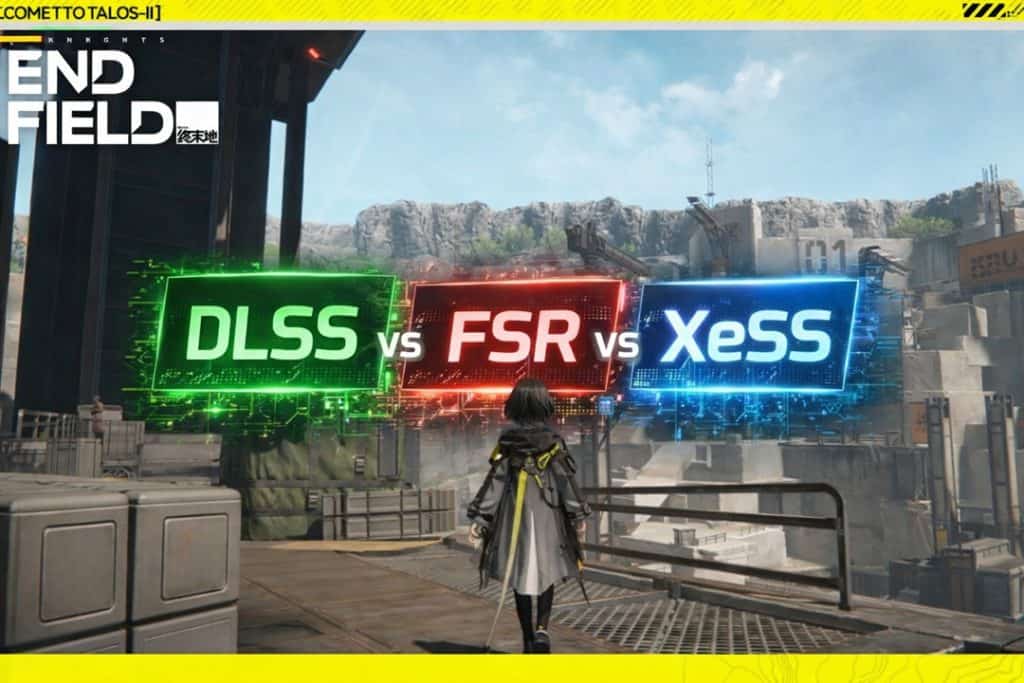
Endfield ships with native support for NVIDIA DLSS 4, AMD FSR, and Intel XeSS. All three are properly integrated into the render pipeline, not bolted on as post-process filters. That matters because proper integration means better temporal stability and fewer artifact issues during fast ability effects.
| Technology | GPU Requirement | Core Benefit | Limitation |
|---|---|---|---|
| DLSS Quality | Any NVIDIA RTX | Best image quality upscaling available | NVIDIA only |
| DLSS Frame Generation | RTX 40 or 50 series only | Generates interpolated frames between rendered ones | Increases pipeline latency |
| DLSS Multi-Frame Gen | RTX 50 series only | Generates multiple frames per rendered frame | RTX 50 only; needs high base FPS |
| FSR Quality | Any GPU | Hardware-agnostic upscaling | Lower image quality than DLSS 4 |
| XeSS | Any GPU (best on Intel Arc) | AI upscaling, competitive quality on Arc | Falls back to spatial on non-Arc |
The “3x FPS boost” headline attached to Endfield’s DLSS 4 launch refers specifically to Multi-Frame Generation on RTX 50 series hardware. On RTX 40 series, Frame Generation typically delivers 1.5x to 1.8x the base framerate. Both numbers are real but both require solid base framerates to generate from Frame Generation with a shaky 40 FPS base produces displayed smoothness that doesn’t match input responsiveness.
Does DLSS Frame Generation increase input latency?
Yes, and it’s worth being direct about this. Generated frames improve the visual fluidity of motion on screen but they don’t carry real input data. The frames between your rendered frames are interpolated from optical flow, which means your actual input is reflected less frequently in what you see. NVIDIA Reflex partially compensates by tightening the render queue on the CPU side, which is why the two features are designed to be used together.
The practical result: Frame Generation is best used when your base framerate is already above 60 FPS and you want to push toward 144Hz on a high-refresh display. Using it to rescue a 35 FPS base into a displayed 70 FPS will look smoother but feel less responsive than a real 60 FPS without Frame Generation.
Which upscaling mode should you use?
Start with Quality mode regardless of your GPU or upscaling technology. Quality mode renders at approximately 67% of output resolution internally. At 1080p output that’s around 720p internal; at 1440p output it’s around 960p. The image quality at Quality mode with DLSS 4’s Transformer model is genuinely close to native in most of Endfield’s environments.
Only drop to Balanced or Performance mode if Quality mode with your base settings still can’t hit your target framerate. Performance mode at 1080p renders at 540p internally and the upscaled result shows fine detail, text, and character outlines all show softness and shimmer that Quality mode avoids.
| Upscaling Mode | Internal Render % | Visual Quality | When to Use |
|---|---|---|---|
| Quality | ~67% | Near-native | Default choice for most players |
| Balanced | ~58% | Good | When Quality + base settings still miss target |
| Performance | ~50% | Acceptable | Only on genuinely low-end hardware |
| Ultra Performance | ~33% | Poor | Not recommended in Endfield |
One configuration note that most guides miss: turn Anti-Aliasing off in Endfield’s base settings when upscaling is active. DLSS and FSR both handle anti-aliasing internally as part of their upscaling process. Running TAA on top of DLSS creates double-processing that blurs fine detail and adds unnecessary GPU cost. Turn AA off in the base settings and let the upscaler handle it.
For the complete breakdown of which GPU tier unlocks which upscaling features, when Frame Generation helps versus hurts, and how to configure the DLSS sharpness setting for Endfield’s visual style, see our full DLSS and Frame Generation guide for Arknights: Endfield.
NVIDIA Reflex and input latency tuning
FPS and latency are not the same thing. You can hit 120 FPS in Endfield and still feel like the game is slow to respond if your render pipeline is backed up. NVIDIA Reflex addresses that specific problem and it does it for free, with no FPS cost on any system where it’s available.
This section covers what Reflex actually does, how to configure it correctly, and what FPS cap strategy produces the lowest measured latency in Endfield. These are not the same as “turn Reflex on and forget it.”
What does NVIDIA Reflex actually do?
The default rendering pipeline queues multiple frames ahead of time for the GPU to process. That queue keeps the GPU fed efficiently but adds latency each queued frame represents a moment where your most recent input hasn’t been reflected on screen yet. At 60 FPS, that queue can add 30-50ms of latency on top of everything else, according to NVIDIA’s latency analysis documentation.
Reflex shrinks that queue by synchronizing CPU frame submission with GPU readiness. Instead of the CPU pushing frames ahead speculatively, it waits for a signal from the GPU before submitting the next frame. The GPU runs slightly less efficiently as a result, but the frames it renders are much closer to your actual current inputs.
| Reflex State | Render Queue | Input Latency | FPS Cost |
|---|---|---|---|
| Off | Full pre-submission queue | Highest | None |
| Enabled | Reduced queue | Lower | Minimal |
| Enabled + Boost | Reduced queue + raised GPU clock floors | Lowest | Minimal |
Set it to Enabled + Boost. The Boost component raises GPU clock minimums during low-load moments to prevent clock ramp-up lag when combat suddenly hits. On systems that alternate between quiet exploration and heavy ability fights, that ramp-up lag is a real source of latency spikes that Boost addresses directly.
How to configure Reflex correctly alongside NVIDIA Control Panel
The in-game toggle is only half the setup. NVIDIA Control Panel has settings that interact directly with Reflex, and getting them wrong undermines most of the benefit.
The critical one: set Low Latency Mode to Off in NVCP when Reflex is active. Low Latency Mode and Reflex both attempt to manage the render queue through different mechanisms. Running both simultaneously creates conflicts that produce inconsistent latency behavior in some driver versions. Reflex is the superior implementation turn NVCP’s Low Latency Mode off and let Reflex handle it entirely.
Also confirm these NVCP settings for Endfield specifically:
| NVCP Setting | Correct Value | Reason |
|---|---|---|
| Low Latency Mode | Off | Conflicts with Reflex |
| Power Management Mode | Prefer Maximum Performance | Prevents GPU clock drops between frames |
| Vertical Sync | Off | Driver-level confirmation; redundant with in-game but worth checking |
| Triple Buffering | Off | Adds frame queue that works against Reflex |
| Max Frame Rate | Off | Use in-game limiter instead; more precise for Reflex |
What FPS cap produces the lowest latency in Endfield?
Running uncapped sounds like the fastest option but it’s usually counterproductive for latency. An uncapped GPU running at 100% utilization builds a render queue regardless of Reflex because there’s no idle window for the synchronization mechanism to function.
The correct method is a cap set just below your monitor’s maximum refresh rate. On a 144Hz display, cap at 141. On 165Hz, cap at 162. On 60Hz, cap at 57. Use the in-game FPS limiter first. If it lacks fine-grained control, RTSS is more precise than the NVIDIA driver-level cap for sub-millisecond frame timing, based on testing methodology documented by Blur Busters.
Does Reflex work without a G-Sync monitor?
Yes. Reflex operates at the GPU and driver level before the frame reaches the display. It functions on any monitor connected to an NVIDIA GPU. That said, the gains Reflex produces are most fully realized on a high-refresh display because a 60Hz panel becomes the bottleneck regardless of how efficiently the GPU produced each frame. At 144Hz or above, the display constraint shrinks and Reflex’s pipeline work translates more directly into what you feel during gameplay.
The full input latency picture in Endfield includes network delay, RAM paging, and display response time alongside the render queue that Reflex addresses. If you’ve configured Reflex correctly and latency still feels off, those other layers are worth examining. Our NVIDIA Reflex deep-dive for Arknights: Endfield covers the complete NVCP configuration, exact FPS cap values by monitor tier, and how to tell whether remaining latency is coming from the render pipeline or somewhere else in the chain.

Stuttering, FPS drops, and lag: quick fix index
Stuttering, FPS drops, and input lag are three different problems that feel similar and have almost no overlap in their fixes. Treating them as the same issue is the most common reason players spend hours tweaking settings without results. This section maps each symptom to its most likely cause so you can go straight to the right fix.
Root cause map
| Symptom | Most Likely Cause | Quick Fix |
|---|---|---|
| Hitches every few seconds on first session | Shader compilation | Let the game run 15-20 min before a serious session |
| Stutter specifically when abilities fire | VRAM overflow or shader cache miss | Lower Texture Quality; increase shader cache size in GPU control panel |
| Consistent micro-stutter across entire session | Overlay conflict or frame pacing issue | Disable all overlays; confirm Exclusive Fullscreen |
| Stutter only during zone transitions | RAM paging or slow storage | Upgrade to 32GB RAM; install game on NVMe |
| Random full-second freezes with no pattern | Driver conflict or background process | Clean driver reinstall via DDU; check Task Manager for CPU spikes |
| FPS drops only in heavy combat, fine elsewhere | CPU particle/physics bottleneck | Lower Particle Quality to Medium; disable Physics Simulation |
| Low FPS across the board despite good GPU | Wrong API or power plan | Confirm DirectX 12; set Windows Power Plan to High Performance |
| Input feels delayed despite good FPS | Render queue backup or V-Sync active | Enable Reflex + Boost; turn V-Sync off; set FPS cap |
| Lag spikes during online play | Network jitter or packet loss | Switch to wired ethernet; check router QoS settings |
The map above handles 90% of cases. The remaining 10% are system-specific combinations that require working through each layer methodically.
How to tell stuttering from FPS drops
These get conflated constantly and the distinction matters. An FPS drop is a sustained reduction in framerate your counter goes from 90 to 55 and stays there while you’re in a demanding area. Stutter is a brief, repeated interruption your framerate looks fine on average but hitches occur at irregular or regular intervals regardless of scene complexity.
FPS drops respond to settings changes. Lowering Shadow Quality or Particle Quality directly reduces the GPU or CPU load causing the drop and the framerate recovers. Stutter almost never responds to settings changes because it’s usually a pipeline or system issue, not a load issue. If lowering every setting to Low doesn’t fix your stutter, stop changing settings and start looking at overlays, RAM, storage, and drivers instead.
The shader compilation problem specifically
Endfield compiles shaders on first run and the hitching during that window is severe enough that players frequently mistake it for a performance problem with their hardware. It isn’t. UE5 games build a local shader cache during initial gameplay, and until that cache is populated, any new effect, environment, or ability that hasn’t been rendered before triggers a compilation stall.
The fix is deliberate: play through varied content for 15-20 minutes before your first serious session. Change zones, trigger different ability types, and move through different environmental lighting conditions. After that initial pass the cache is largely populated and the stutter drops off significantly. Also verify your shader cache isn’t being cleared between sessions set the shader cache size to at least 10GB in NVIDIA Control Panel or AMD Radeon Software.
Input lag versus network lag
Input lag is local. It’s the delay between your key press and what appears on screen, caused by render queue backup, V-Sync frame queuing, or display pipeline latency. Fixing it involves Reflex, FPS caps, and display mode none of which touch your network connection.
Network lag is the round-trip delay between your machine and the game server. It shows up as abilities that register late, skill confirmations that take a beat longer than expected, or enemy behavior that snaps rather than animating smoothly. Fixing it involves wired ethernet, router QoS prioritization, and in some cases a gaming VPN to find a faster routing path to the server.
The reason the distinction matters: players with genuine input lag often chase network fixes that accomplish nothing, and players with genuine network lag sometimes spend hours on Reflex configuration that doesn’t touch their actual problem. Check your in-game ping counter first. If it’s consistently above 80ms, the network is the issue. If ping is fine and the game still feels slow, the render pipeline is the culprit.
For the complete shader cache fix, VRAM overflow diagnosis, overlay removal process, and driver reinstall walkthrough, see our dedicated stuttering and freezing fix guide for Arknights: Endfield. For network-side fixes, Reflex configuration, RAM paging diagnosis, and FPS cap strategy, our lag and input latency fix guide covers the full process step by step.
This section is the gateway to your money pages.
Hardware that actually matters for Arknights: Endfield
Settings optimization has a ceiling. Once you’ve applied the right preset, enabled DLSS or FSR, turned off V-Sync, and configured Reflex, the remaining FPS gap is hardware. This section covers which components actually move the needle in Endfield specifically, what the minimum and sweet spot tiers look like, and where to go for tested picks at every budget.
How Endfield uses your hardware
Endfield is a GPU-first game. The renderer is the primary bottleneck in the vast majority of configurations, and the GPU is where upgrade money returns the most frames per dollar. That said, three other components have specific roles in this title that are worth understanding before deciding where to spend.
GPU: Drives raw FPS, upscaling capability, and Frame Generation access. The single most impactful upgrade for any player below their target framerate. RTX 40 series unlocks DLSS Frame Generation; RTX 50 series adds Multi-Frame Generation. AMD cards deliver strong native rasterization performance but sit outside the DLSS ecosystem.
CPU: Relevant primarily at the 4-core tier and below. Modern 6-core and 8-core CPUs are rarely the bottleneck in Endfield at 1080p or 1440p. If you’re already on a Ryzen 5 5600 or Intel i5-12400 or better, a CPU upgrade will not produce meaningful FPS gains in this title.
RAM: Capacity matters more than speed in Endfield. The UE5 engine caches assets aggressively and 16GB with background apps running leads to regular paging stutter within a session. 32GB eliminates that entirely. Speed and timing differences between DDR4 kits at similar capacity are minor in this game.
Storage: The difference between an HDD and any SSD is dramatic in Endfield zone load times, mid-combat asset streaming, and initial shader cache compilation all improve significantly. The difference between a SATA SSD and an NVMe is real but smaller. Moving from HDD to SSD is the priority; NVMe is the refinement.
Component tiers at a glance
| Component | Minimum for 60 FPS at 1080p | Sweet Spot | Overkill |
|---|---|---|---|
| GPU | RTX 3060 / RX 6600 XT | RTX 4070 / RX 7800 XT | RTX 4090 |
| CPU | Intel i5-8600K / Ryzen 5 3600 | Ryzen 5 5600 / i5-12400 or better | Ryzen 9 7950X3D |
| RAM | 16GB DDR4 (no background apps) | 32GB DDR4 or DDR5 | 64GB |
| Storage | SATA SSD | NVMe Gen 3 or Gen 4 | Samsung 990 Pro |
A few notes on this table. The GPU minimum assumes DLSS Quality or FSR Quality is enabled without upscaling, an RTX 3060 struggles to hold stable 60 FPS at 1080p High settings. The CPU minimum is genuinely minimum; below 6 cores you’ll see single-core bottleneck symptoms in combat regardless of GPU. RAM at 16GB works if you game with nothing else open; in practice most players have enough background processes running that 32GB is the real functional minimum for stutter-free sessions.
The monitor is part of the equation
One component that doesn’t appear in most performance guides but matters specifically for Endfield: your display. If your GPU is hitting 140 FPS and your monitor tops out at 60Hz, you’re seeing less than half of what your hardware produces. More importantly, Reflex’s latency gains are only fully realized on a high-refresh panel, at 60Hz the display itself becomes the bottleneck in the total latency chain regardless of how efficiently the GPU rendered each frame.
A 144Hz panel with G-Sync Compatible certification and FreeSync Premium is the practical target. It covers the refresh rate most RTX 4070 and RX 7800 XT builds can consistently feed in Endfield with DLSS Quality enabled, and it removes the display as a latency bottleneck without requiring a $500+ panel.
Where to go from here
Each component category has a dedicated tested guide. These aren’t spec-sheet comparisons, they’re based on real FPS numbers in Endfield at 1080p and 1440p, with specific recommendations at each price point.
I tested five GPUs from $250 used to $600 new specifically in Endfield across both resolutions. The results show clearly which card crosses the 60 FPS threshold, which ones unlock Frame Generation, and which delivers the best performance per dollar at each tier. See our best GPU guide for Arknights: Endfield for the full breakdown.

For RAM and storage, the stutter reduction from upgrading 16GB to 32GB and moving from HDD to NVMe is documented with real session data. Both upgrades together cost under $150 and cover every storage-side stutter cause that settings changes can’t reach. Our best RAM and SSD guide for Arknights: Endfield has tested kit and drive picks at every budget with the real-world Endfield numbers.
The display is the component most players upgrade last and should probably upgrade earlier. Four monitors from $149 to $299 were tested for measured input lag, VRR implementation quality, and Reflex compatibility specifically for Endfield. Our best monitor guide for Arknights: Endfield covers every pick with the tradeoffs stated plainly.

What stable performance in Endfield actually looks like
Work through this guide top to bottom and the result is predictable: a system that holds its target framerate through combat, loads zones without hitching, and responds to inputs without perceptible delay. That’s not a guarantee on hardware below the minimum spec, but on anything from an RTX 3060 tier upward, the combination of the right preset, DLSS Quality, Reflex properly configured, and overlays cleared will produce a meaningfully different experience than default settings.
The free gains are substantial. Shadow Quality alone recovers 15-20% GPU headroom. DLSS Quality adds another significant chunk on top. Disabling overlays and fixing the FPS cap costs nothing and removes two of the most common stutter and latency sources simultaneously. Most players who work through the settings section of this guide hit their target framerate without touching hardware at all.
When settings aren’t enough, the hardware section points you in the right direction without guesswork. GPU is almost always the right upgrade target in Endfield. RAM and storage are the right targets when stutter persists despite correct settings. Our guide on RAM and SSD upgrades for Arknights Endfield covers which specs actually reduce stutter and which don’t. The monitor is the right target when FPS is already there but the experience still doesn’t feel right.
If your GPU is the ceiling, our tested GPU recommendations for Arknights: Endfield are the fastest path to better frames, real benchmark numbers at 1080p and 1440p, five cards tested from $250 to $600, with a clear answer at every budget. Every other optimization in this guide will still apply on top of whatever hardware you’re running. Get the settings right first, then let the hardware carry you the rest of the way.




