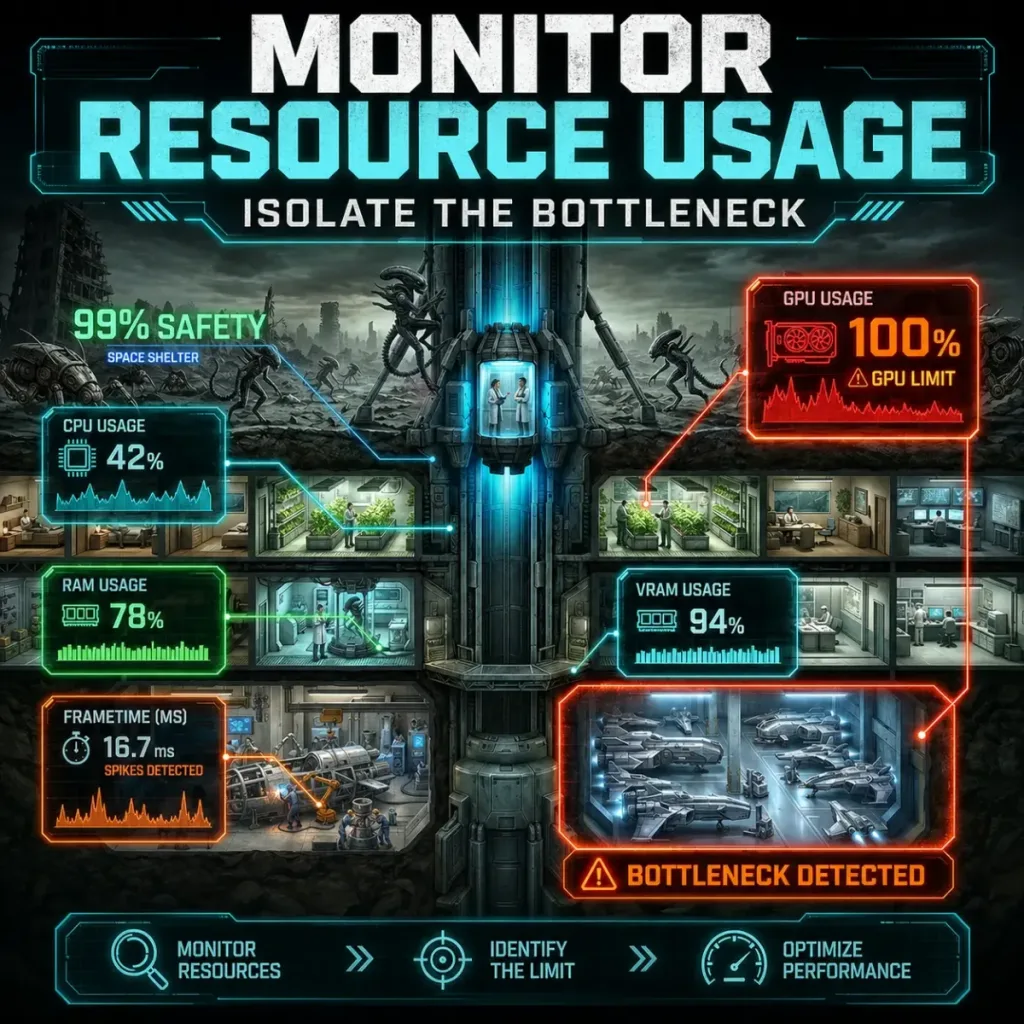
Project Entropy cpu 100% usage fix begins with understanding what is actually happening: your CPU is processing more work per frame than it can handle, which forces your GPU to wait between frames. The result is low FPS, stutter, and a GPU sitting at 40-60% while your CPU is maxed out. This guide covers every real cause and the exact steps to bring CPU load back under control.
📋 Table of Contents
TL;DR: CPU hitting 100% in Project Entropy is almost always caused by a CPU-GPU imbalance, background processes stealing cycles, or in-game settings that push simulation load onto the CPU. Fix your power plan, close background processes, lower CPU-heavy settings, and enable HAGS. Those steps resolve the majority of cases without any hardware change.
Quick wins if you are in a hurry
Apply these before anything else. Each one takes under two minutes.

Grab Your 6★ Weapon Before It's Gone!
- Free-to-play strategy
- Optimized for Windows PC

Start With 10,000+ Oroberyls , Hit Play!
- Arknights: Endfield — Free on PC. 10,000
- Oroberyls up for grabs.

Your Squad's Waiting. Jump In Free!
- New Homecoming Expansion: 2 Maps, 2 Operators, 1 Free 6★ Weapon: $0.
- Action RPG - Base Building on PC-Play Free, Keep Your Progress on Mobile.
- Set Windows power plan to High Performance (search “power plan” in Start)
- Close all background apps: browser, Discord, cloud sync, antivirus scans
- Disable Xbox Game Bar (Settings > Gaming > Xbox Game Bar > Off)
- In Task Manager, check if any non-game process is above 5% CPU during gameplay and kill it
- Lower Shadow Quality and Draw Distance in Project Entropy graphics settings
Got 10 more minutes? Keep reading for the full fix flow.
Why CPU usage hits 100% in Project Entropy
This usually happens when the game’s simulation load exceeds what your CPU can process at its current clock speed, or when background processes are competing for the same cores.
The three most common causes:
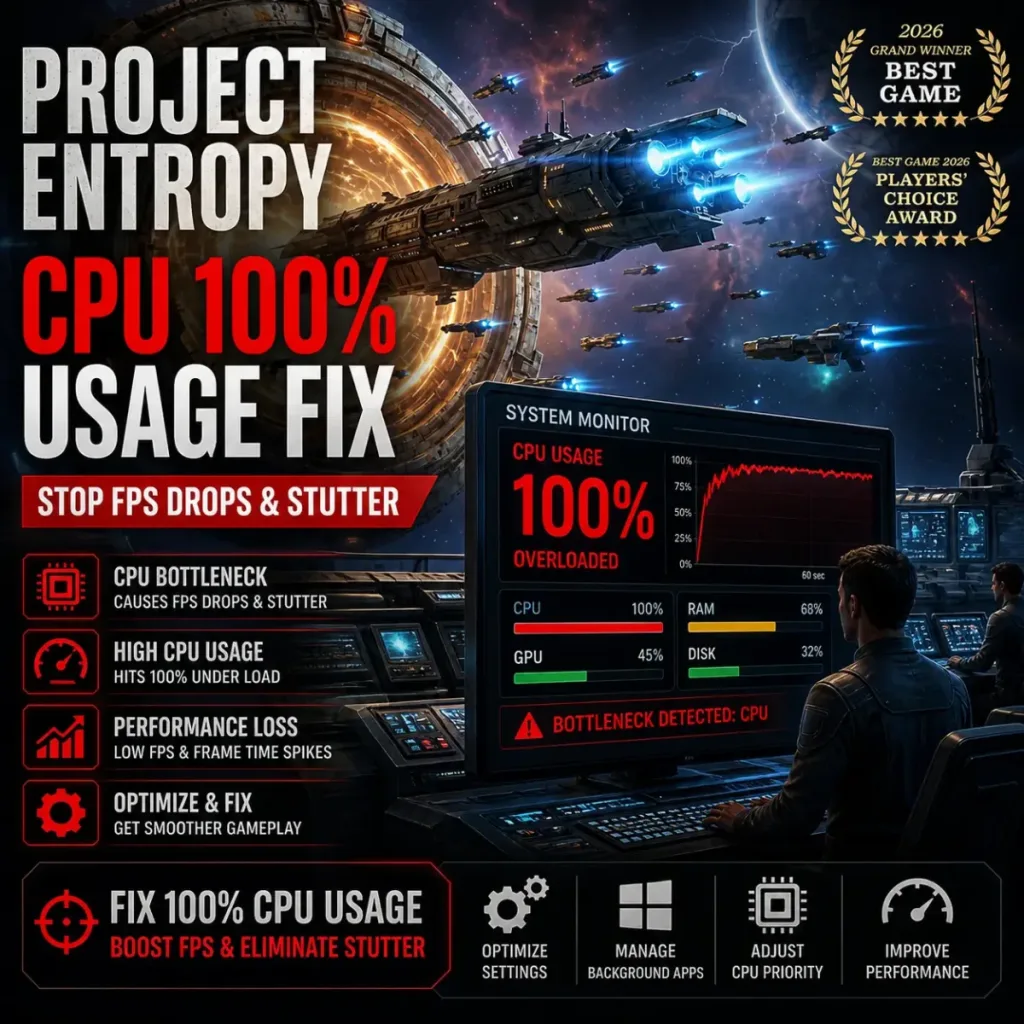
- CPU-GPU imbalance — your GPU is significantly faster than your CPU, so the GPU finishes frames faster than the CPU can prepare the next one
- Background CPU load — Windows Update, antivirus, browser, and overlay processes all consume cores that the game needs
- CPU-heavy in-game settings — draw distance, NPC density, and physics simulation run on the CPU, not the GPU
This tends to affect mid-range systems where the CPU is two or more generations behind the GPU. An RTX 3070 paired with an i5-8400 is a classic example: the GPU has far more rendering capacity than the CPU can feed. FPS drops are more noticeable in dense combat areas or open-world sections where NPC and physics simulation spikes.
The key signal: if your GPU usage drops below 70% at the exact moment your CPU hits 100%, the problem is confirmed. The GPU is not underperforming. It is waiting.
[[IMAGE_REQUIRED: MSI Afterburner overlay showing CPU usage at 100% and GPU usage at 50-60% simultaneously during Project Entropy gameplay, both usage columns visible side by side]]
Project Entropy cpu 100% usage fix: quick fixes to reduce CPU load fast
Work through these in order. Most systems see improvement by step three.
Step 1: Set CPU priority for Project Entropy
Windows does not always allocate full CPU priority to games by default.
- Open Task Manager during gameplay
- Find Project Entropy in the Details tab
- Right-click > Set Priority > High
- Do not set to Realtime. High is the correct setting for games.
This ensures the game gets first access to CPU cycles over background processes.
Step 2: Disable CPU-heavy Windows background processes
These are the most common background processes that consume CPU during gaming:
| Process | How to disable |
|---|---|
| Windows Update | Settings > Windows Update > Pause updates |
| Xbox Game Bar | Settings > Gaming > Xbox Game Bar > Off |
| Search indexing | Services > Windows Search > Startup type > Disabled |
| Antivirus real-time scan | Pause during gaming session |
| Browser with video tabs | Close completely before launching |
Even one of these running at the wrong moment can push CPU usage over the threshold.
Step 3: Lower CPU-heavy in-game settings
Not all graphics settings hit the GPU. These settings run on the CPU and directly affect CPU usage:
| Setting | Recommended | CPU Impact | Notes |
|---|---|---|---|
| Draw Distance | Medium | High | Biggest CPU cost in open areas |
| NPC/Crowd Density | Low or Medium | High | Each NPC runs simulation logic |
| Physics Quality | Low | Medium | Particle and cloth physics are CPU-bound |
| Shadow Distance | Medium | Medium | Longer shadow distance increases CPU culling |
| Ambient Occlusion | Off | Low to Medium | Partially CPU-side in some engines |
Start with Draw Distance and NPC density. Those two settings have the highest CPU impact and the lowest visual cost at medium.
Step 4: Enable Hardware-Accelerated GPU Scheduling (HAGS)
HAGS moves GPU memory management from the CPU to the GPU itself, directly reducing CPU overhead per frame.
- Windows Settings > System > Display > Graphics > Change default graphics settings
- Hardware-Accelerated GPU Scheduling > On
- Restart required
Supported on NVIDIA RTX 30 and 40 series, AMD RX 6000 and 7000 series. Do not enable on older hardware.
[[IMAGE_REQUIRED: Windows Display Settings showing Hardware-Accelerated GPU Scheduling toggle set to On, with the setting label clearly visible]]
Step 5: Disable all overlays
Each active overlay (Discord, Steam, GeForce Experience, Xbox Game Bar) runs a small process on the CPU during gameplay. Combined, they can consume 3-8% of CPU capacity that the game needs.
- Discord: Settings > Overlay > Disable in-game overlay
- Steam: Settings > In-Game > uncheck Enable Steam Overlay
- GeForce Experience: Settings > General > uncheck In-Game Overlay
- Xbox Game Bar: Settings > Gaming > Xbox Game Bar > Off
Relaunch the game after disabling all overlays and recheck CPU usage.
Advanced fixes for bottleneck, system, and thermal issues
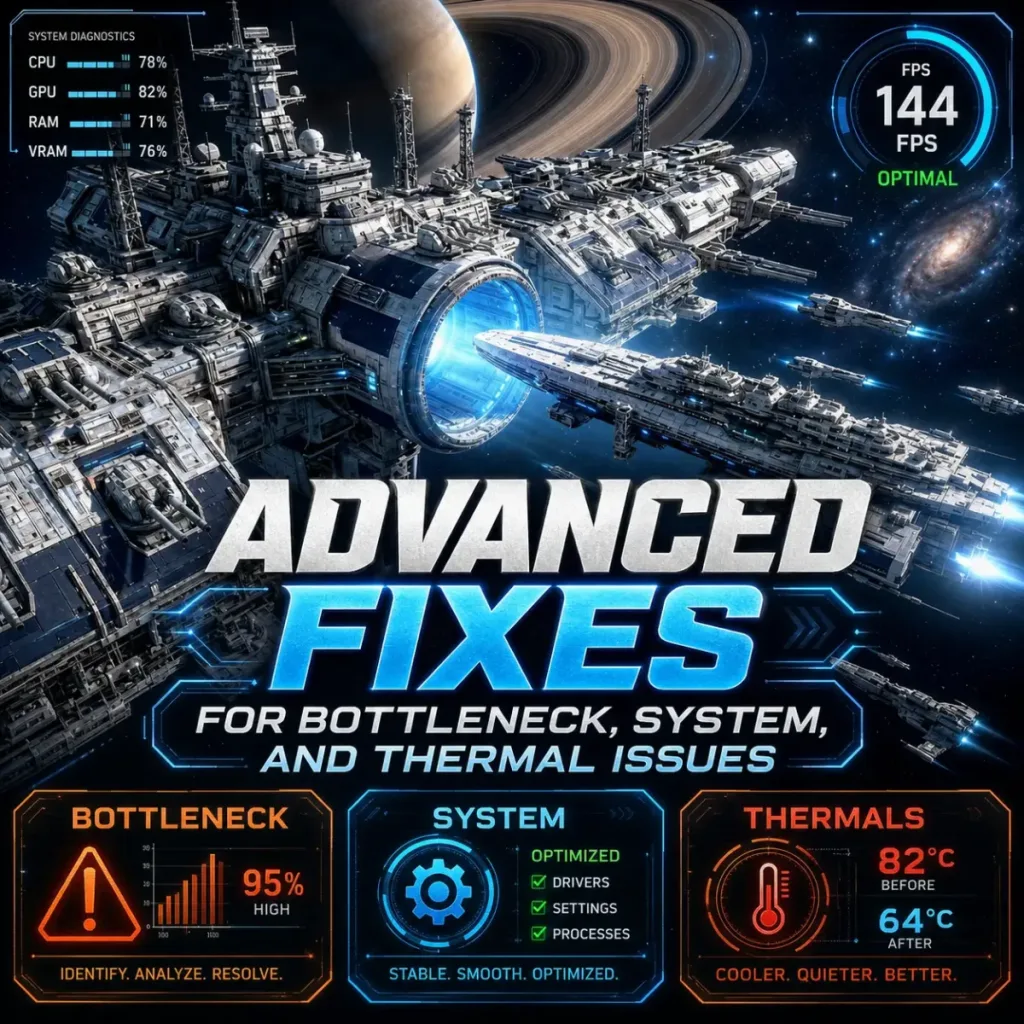
If CPU usage is still hitting 100% after the quick fixes, the problem is deeper. Work through these in order.
Confirm the bottleneck type
Before going further, confirm what you are dealing with. Open MSI Afterburner with an overlay showing CPU usage per core, GPU usage, and frame time simultaneously.
- All cores at 90-100%: genuine CPU bottleneck, the hardware cannot keep up
- One or two cores at 100%, others low: game is not using all cores, or a single-threaded process is the limit
- CPU spikes to 100% only in specific areas: scene-specific simulation load, fixable with settings
- CPU at 100% from launch, even in menus: background process issue, not the game
Each pattern has a different fix path. Do not apply advanced fixes until you know which pattern applies to your system.
Enable XMP or EXPO for RAM
RAM running below its rated speed directly hurts CPU performance in games. Most systems ship with RAM defaulting to 2133MHz, even if the sticks are rated for 3200MHz or higher.
- Enter BIOS on startup (usually Delete or F2)
- Find XMP (Intel) or EXPO (AMD) profile
- Enable the highest stable profile
- Save and restart
This is one of the most overlooked CPU performance fixes. Results vary depending on your CPU and RAM combination, but gains of 10-15% in CPU-limited scenarios are common based on community testing.
Check CPU thermals
If CPU usage spikes to 100% and then FPS drops dramatically, thermal throttling may be the cause. When a CPU overheats, it reduces its clock speed to protect itself, which tanks per-frame performance.
Download HWMonitor and watch CPU temperature during gameplay. Above 90°C on most desktop CPUs means the cooler is struggling. Above 95°C is throttle territory on most chips.
Quick thermal fixes:
- Clean dust from CPU cooler and case fans
- Reapply thermal paste if the system is more than three years old
- Raise fan curve in BIOS or using a tool like Argus Monitor
- Add case intake fans if airflow is poor
[[IMAGE_REQUIRED: HWMonitor showing CPU temperature per core and CPU clock speed during Project Entropy gameplay, with max temperature column highlighted]]
Adjust CPU affinity as a last resort
If the game is maxing out specific cores while leaving others idle, manually assigning affinity can help in some cases. This is not a reliable fix and results vary, but it is worth trying when all other options are exhausted.
- Task Manager > Details tab > Project Entropy > right-click > Set Affinity
- Confirm all cores are checked first
- If the game uses only physical cores well, try unchecking hyperthreaded (logical) cores
Older CPUs may not have enough single-threaded performance to handle Project Entropy’s simulation demands regardless of these fixes. If your CPU is more than five or six generations old and bottlenecking persists, software optimization has a ceiling.
For systems where CPU bottleneck is confirmed and persistent, the GPU is being underutilized as a direct consequence. See our Project Entropy GPU not used fix for the GPU side of the same problem.
Frequently asked questions
Is 100% CPU usage normal in Project Entropy?
No. Sustained 100% CPU usage means the game is bottlenecked by the CPU, and FPS will drop or stutter as a result. Brief spikes during loading are normal, but consistent 100% during gameplay always indicates a bottleneck that needs fixing.
Can CPU bottleneck cause low FPS in Project Entropy?
Yes, and this is one of the most common causes of low FPS in the game. When the CPU cannot process game logic fast enough, the GPU waits between frames. You get low FPS and low GPU usage at the same time, even though the GPU itself is fine. Monitoring both simultaneously confirms this pattern.
How do I reduce CPU usage while gaming?
Close all background processes first, then lower CPU-heavy in-game settings like draw distance and NPC density. Enable HAGS if your GPU supports it, and make sure XMP or EXPO is enabled in BIOS so your RAM runs at its rated speed. Those four steps cover the majority of CPU load reduction without any hardware change.
Common issues and fixes
Issue: CPU hits 100% only in specific areas of the map Fix: Scene-specific simulation load. Lower Draw Distance and NPC density in graphics settings. These settings scale CPU usage directly based on how many objects and characters the game is simulating at once.
Issue: CPU at 100% but GPU is also at 100% Fix: Your system is fully loaded, which is actually healthy. If FPS is acceptable, this is not a problem. If FPS is low despite both at 100%, you need a hardware upgrade, not a software fix.
Issue: CPU usage drops when alt-tabbed but spikes immediately on return Fix: A background process is competing for CPU time while the game runs. Use Task Manager sorted by CPU to identify and close the offending process before launching the game.
Issue: CPU temperature is fine but still hitting 100% usage Fix: Thermal throttling is not the cause. Focus on CPU-GPU imbalance: lower CPU-heavy settings and enable HAGS to reduce per-frame CPU overhead.
Quick checklist before you launch
- Windows power plan set to High Performance
- Project Entropy priority set to High in Task Manager
- All overlays disabled (Discord, Steam, GeForce Experience, Xbox Game Bar)
- Background processes closed (browser, cloud sync, antivirus scan)
- Draw Distance and NPC density lowered
- XMP or EXPO enabled in BIOS
- HAGS enabled (RTX 30/40 or RX 6000/7000 only)
- CPU temperature confirmed below 90°C during gameplay
- CPU and GPU usage monitored simultaneously to confirm bottleneck type
With CPU load under control, your GPU will finally have room to run at full capacity and FPS will stabilize. If you are still seeing low GPU usage after fixing the CPU side, work through our Project Entropy low FPS fix guide for the remaining system-level causes.
Written by Anir | FPSFlow.com Focus: PC performance optimization and FPS troubleshooting Last updated: March 2025 Method: Based on aggregated player reports, common hardware behavior, and optimization best practices




