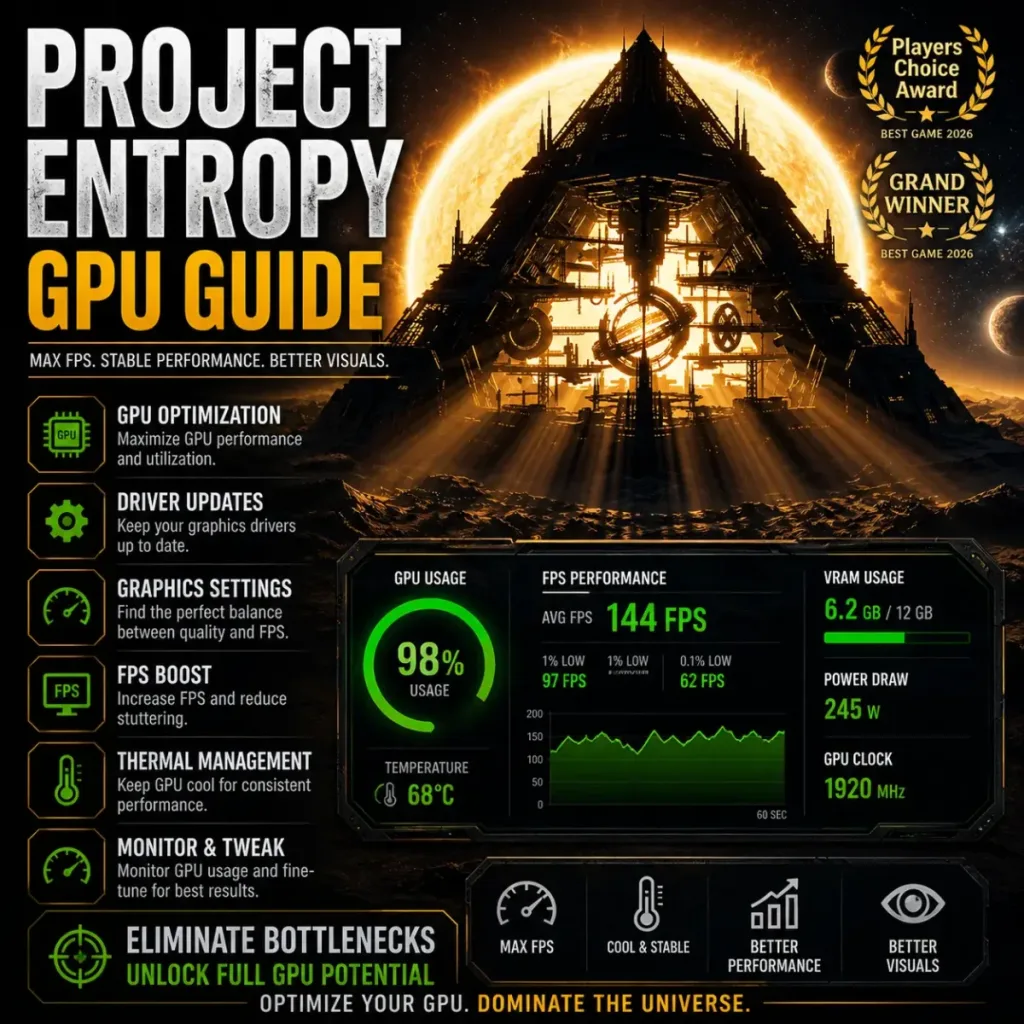
The Project Entropy gpu not used fix starts with one check: open MSI Afterburner or Task Manager and look at your GPU usage during gameplay. If it is sitting below 70% while your FPS is low, your GPU is not the bottleneck. Something else is limiting it, and throwing graphics settings changes at the problem will not help. This guide walks through every real cause and the exact fix for each one.
📋 Table of Contents
TL;DR: Low GPU usage in Project Entropy almost always means a CPU bottleneck, wrong power settings, or the game running on integrated graphics instead of your dedicated GPU. Fix power plan first, verify the correct GPU is selected in Windows Graphics Settings, then work through the driver and CPU fixes below.
Quick wins if you are in a hurry
Apply these before anything else. Each one takes under two minutes.

Grab Your 6★ Weapon Before It's Gone!
- Free-to-play strategy
- Optimized for Windows PC

Start With 10,000+ Oroberyls , Hit Play!
- Arknights: Endfield — Free on PC. 10,000
- Oroberyls up for grabs.

Your Squad's Waiting. Jump In Free!
- New Homecoming Expansion: 2 Maps, 2 Operators, 1 Free 6★ Weapon: $0.
- Action RPG - Base Building on PC-Play Free, Keep Your Progress on Mobile.
- Open Windows Graphics Settings (search in Start), find Project Entropy, set it to High Performance
- Set Windows power plan to High Performance (not Balanced, not Power Saver)
- In NVIDIA Control Panel or AMD Software, set Power Management Mode to Prefer Maximum Performance for Project Entropy
- Disable the Steam or Discord overlay, then relaunch the game and recheck GPU usage
Got 10 more minutes? Keep reading for the full diagnostic flow.
Why your GPU is not being used in Project Entropy
This usually happens when the game is CPU-limited, running on the wrong GPU, or being held back by driver and system power settings. The GPU sits idle not because it cannot handle the load, but because it is never receiving enough work to fill its capacity.
The four most common causes:
- CPU bottleneck — the CPU cannot feed frames fast enough, so the GPU waits between frames
- Wrong GPU selected — the game is running on integrated graphics instead of your dedicated card
- Power settings limiting GPU clock speed — the GPU is clocked low because Windows or the driver is in a power-saving state
- Driver or API issue — the rendering path is not utilizing the GPU correctly for your hardware generation
This tends to affect systems where the CPU is several generations older than the GPU, or laptops where the iGPU handles lightweight tasks by default. In most cases, GPU usage below 50% with low FPS points directly to one of these four causes, not to the game itself being unoptimized.
FPS drops are more noticeable in combat or dense open areas, which is where the CPU load spikes and the GPU starts waiting. If performance is fine in menus but drops immediately in gameplay, that pattern confirms a CPU-side limitation rather than a GPU one.
[[IMAGE_REQUIRED: MSI Afterburner overlay showing GPU usage at low percentage alongside low FPS counter during Project Entropy gameplay, with GPU usage and framerate columns visible]]
Project Entropy gpu not used fix: quick fixes to force GPU usage

Work through these in order. Most systems are resolved by step two or three.
Step 1: Force the game to use your dedicated GPU
Windows sometimes defaults to integrated graphics for games it does not recognize as demanding. This is the most common cause on laptops and on desktops with a CPU that has integrated graphics.
- Open Settings > System > Display > Graphics
- Click Browse, find the Project Entropy executable
- Click Options, select High Performance
- Relaunch the game
For NVIDIA users, also check NVIDIA Control Panel under Manage 3D Settings > Program Settings. Find Project Entropy (or add it manually) and set Preferred Graphics Processor to your dedicated NVIDIA GPU.
[[IMAGE_REQUIRED: Windows Graphics Settings screen showing Project Entropy set to High Performance GPU option, with the dropdown menu visible]]
Step 2: Set power management to maximum performance
A GPU running in power-saving mode will artificially cap its clock speed, which directly reduces how much work it can process per frame.
- NVIDIA: Control Panel > Manage 3D Settings > Power Management Mode > Prefer Maximum Performance
- AMD: AMD Software > Gaming > Project Entropy > Graphics > Power Tuning set to maximum
- Windows: Power Options > select High Performance or Ultimate Performance
Step 3: Switch the rendering API to DirectX 12
In Project Entropy settings, go to Graphics > API and select DirectX 12. DX12 reduces CPU overhead on the render thread, which directly frees the GPU to operate at higher utilization. This is especially effective on RTX 20 series and newer, and RX 5000 series and newer.
If DX12 causes crashes or instability, fall back to DX11. But try DX12 first.
Step 4: Disable overlays and background GPU consumers
Each active overlay (Discord, Steam, GeForce Experience, Xbox Game Bar) adds a small but real load to the GPU driver stack. More importantly, they can cause the driver to split GPU resources. Disable all overlays, relaunch, and recheck usage.
| Fix | Expected GPU Usage Gain | Time to Apply |
|---|---|---|
| Force dedicated GPU in Windows | High | 2 min |
| Set power mode to max performance | High | 1 min |
| Switch to DirectX 12 | Medium | 1 min |
| Disable overlays | Low to Medium | 2 min |
| Update GPU drivers | Medium | 10 min |
Advanced fixes for CPU bottleneck, drivers, and system issues
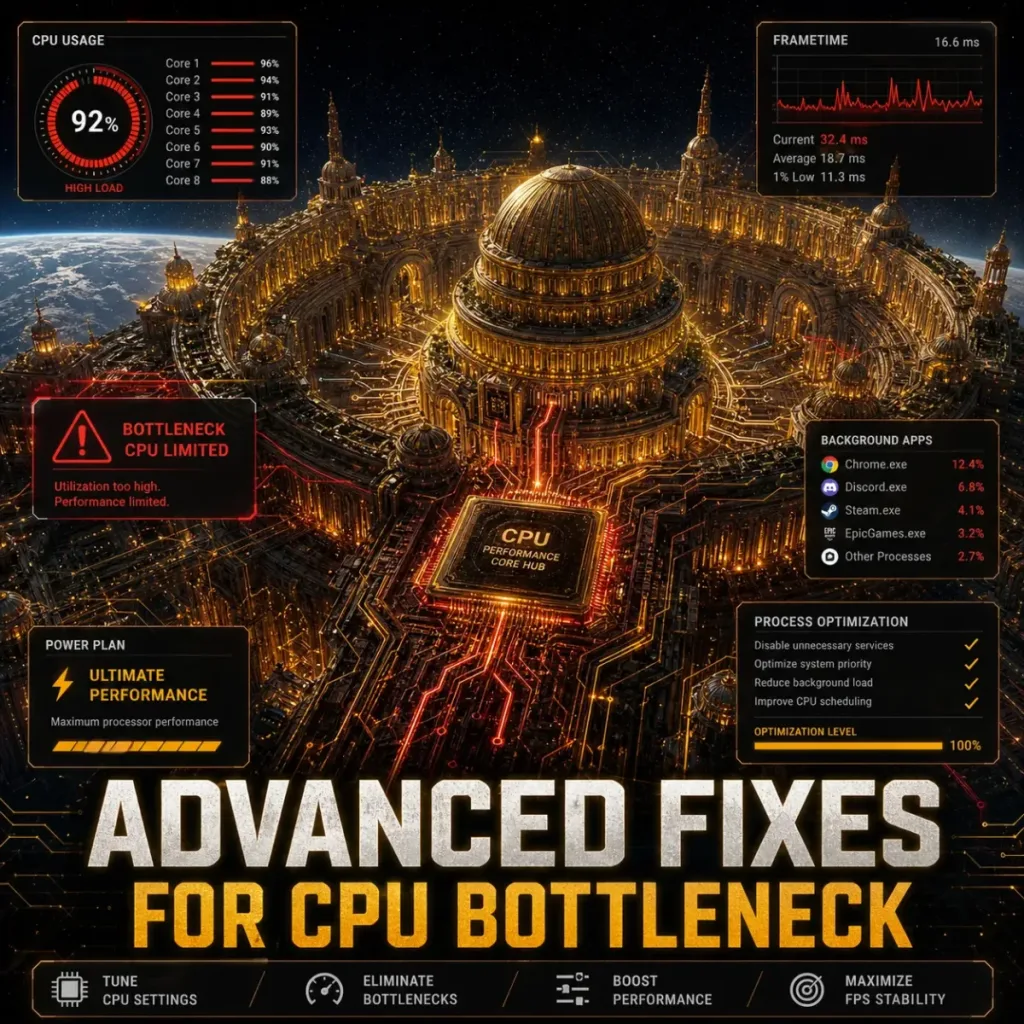
If GPU usage is still low after the quick fixes, the problem is at the system level. Work through these in order.
Diagnose whether you have a CPU bottleneck
Open MSI Afterburner with the in-game overlay showing both CPU and GPU usage simultaneously. If CPU usage is at 90-100% and GPU usage is at 40-60%, that is a confirmed CPU bottleneck. The GPU is waiting for the CPU to finish processing game logic before it can render the next frame.
Results vary depending on your specific CPU and GPU combination. A pairing like an i5-8400 with an RTX 3070 will bottleneck heavily in CPU-intensive scenes. A pairing like an i7-12700K with an RTX 3060 will almost never bottleneck.
Fixes for CPU bottleneck:
- Lower CPU-heavy settings — reduce NPC density, draw distance, or simulation quality if the game exposes these options
- Enable Resizable BAR (ReBAR) in BIOS if your CPU and GPU both support it. This reduces CPU-to-GPU data transfer overhead directly
- Check CPU affinity — Task Manager > Project Entropy > Set Affinity > confirm all cores are checked
- Disable CPU-heavy background processes — Windows Update, antivirus real-time scanning, and browser tabs with video all consume meaningful CPU cycles
Older CPUs may struggle with Project Entropy in CPU-heavy areas even after all these steps. If your CPU is more than five or six generations old and bottlenecking is confirmed, software fixes have a ceiling.
Clean install GPU drivers
Corrupted or outdated drivers are a consistent cause of low GPU utilization on newer game releases. Do not update through Windows Update. It delivers older driver versions.
Use DDU (Display Driver Uninstaller) in safe mode to fully remove the existing driver, then download and install the latest version directly from NVIDIA.com or AMD.com.
This single step resolves low GPU usage in a meaningful number of cases, especially after a Windows update or a driver update that did not complete cleanly.
Enable Hardware-Accelerated GPU Scheduling (HAGS)
HAGS reduces latency between the CPU and GPU render pipeline, which directly improves GPU utilization in CPU-limited scenarios.
- Device Manager > Display Adapters > your GPU > Properties > Driver tab > confirm HAGS is available
- Or: Windows Settings > Display > Graphics > Change default graphics settings > Hardware-Accelerated GPU Scheduling > On
Supported on NVIDIA RTX 30 and 40 series, and AMD RX 6000 and 7000 series. Do not enable on older hardware, it can cause instability.
Check for thermal throttling
If GPU usage fluctuates wildly rather than staying consistently low, thermal throttling is likely. When a GPU overheats, it reduces its clock speed to protect itself, which drops utilization and FPS simultaneously.
Use HWMonitor during gameplay and watch GPU temperature. Above 85°C is throttle territory on most cards. Clean dust from the heatsink, raise the fan curve in your GPU software, and recheck.
[[IMAGE_REQUIRED: HWMonitor showing GPU temperature and GPU clock speed columns side by side during Project Entropy gameplay, with temperature highlighted]]
Frequently asked questions
Why is my GPU usage low in Project Entropy?
In most cases, the game is CPU-limited, running on the wrong GPU, or being held back by power settings. Check Task Manager to confirm which GPU is active during gameplay, then verify your power plan and driver settings before changing anything in-game.
How do I force Project Entropy to use my GPU?
Go to Windows Settings > System > Display > Graphics, find Project Entropy, and set it to High Performance. Also check NVIDIA Control Panel or AMD Software and confirm the game is assigned to your dedicated GPU, not the integrated one.
Can CPU bottleneck cause low GPU usage?
Yes. This is one of the most common causes of low GPU usage in Project Entropy. If your CPU cannot process game logic fast enough, the GPU sits idle between frames. Monitor both CPU and GPU usage simultaneously. If CPU is near 100% and GPU is below 70%, you have a CPU bottleneck.
Common issues and fixes
Issue: GPU usage shows 0% or near 0% in Task Manager during gameplay Fix: The game is running on integrated graphics. Go to Windows Graphics Settings and force Project Entropy to High Performance. Also check NVIDIA Control Panel under Program Settings.
Issue: GPU usage jumps between 30% and 90% unpredictably Fix: This is thermal throttling or a driver issue. Check GPU temperature with HWMonitor. If temps are fine, do a clean driver reinstall with DDU.
Issue: GPU usage is fine in the main menu but drops in gameplay Fix: Confirmed CPU bottleneck. The CPU load spikes in gameplay and the GPU starts waiting. Lower draw distance or simulation settings, enable HAGS, and close all background processes.
Issue: Switched to dedicated GPU but usage is still low Fix: Power management is likely the remaining issue. Set both Windows power plan and GPU driver power mode to maximum performance, then relaunch.
Quick checklist before you launch
- Dedicated GPU forced in Windows Graphics Settings
- GPU set to High Performance in NVIDIA Control Panel or AMD Software
- Windows power plan set to High Performance
- DirectX 12 selected in game graphics settings
- HAGS enabled (RTX 30/40 or RX 6000/7000 only)
- All overlays disabled
- GPU drivers updated via clean install
- CPU and GPU usage monitored simultaneously to confirm bottleneck type
- GPU temperature confirmed below 85°C
With GPU usage corrected, most mid-range setups will see an immediate FPS jump without any hardware change. If FPS is still unstable after GPU usage is normalized, the remaining issue is likely frame time consistency rather than raw GPU load. See our Project Entropy stuttering fix for that specific problem, or go back through the full performance checklist in our Project Entropy low FPS fix guide.
Written by Anir | FPSFlow.com Focus: PC performance optimization and FPS troubleshooting Last updated: March 2025 Method: Based on aggregated player reports, common hardware behavior, and optimization best practices




