Understanding Project Entropy system requirements is the first step, but knowing how they translate into real performance is what actually matters.
📋 Table of Contents
Project Entropy system requirements tell you if the game will launch, not if it will run smoothly. Plenty of players hit the minimum bar on paper, then spend the first hour battling stutters, FPS drops, and frame pacing issues that make the experience feel unfinished.
This guide breaks down the official Project Entropy PC requirements, explains what smooth performance actually demands from your hardware, and gives you the quick settings changes that matter most if your rig is on the edge.

Grab Your 6★ Weapon Before It's Gone!
- Free-to-play strategy
- Optimized for Windows PC

Start With 10,000+ Oroberyls , Hit Play!
- Arknights: Endfield — Free on PC. 10,000
- Oroberyls up for grabs.

Your Squad's Waiting. Jump In Free!
- New Homecoming Expansion: 2 Maps, 2 Operators, 1 Free 6★ Weapon: $0.
- Action RPG - Base Building on PC-Play Free, Keep Your Progress on Mobile.
Understanding Project Entropy system requirements is only the first step. What really matters is how those specs translate into actual in-game performance
Quick wins if you are in a hurry
- Drop Shadow Quality to Medium or Low. Shadows are among the heaviest settings in most modern engines and have the most recoverable FPS impact.
- Turn off or reduce Ambient Occlusion. The visual difference is subtle at normal play distance. The FPS gain is not.
- Enable Resolution Scaling at 85-90% if your GPU is the bottleneck. Most players cannot tell the difference at that range.
- Close background apps before launching. Discord, Chrome, and overlay software each eat RAM and CPU cycles you need in-game.
Got more time? The full breakdown is below.
Project Entropy system requirements: minimum and recommended specs
The table below lists the official requirements as published by the developer. Minimum specs mean the game will launch. Recommended specs are where consistent, stable gameplay starts.
| Component | Minimum | Recommended |
|---|---|---|
| OS | Windows 10 64-bit | Windows 10 / 11 64-bit |
| CPU | Intel Core i5-8400 / AMD Ryzen 5 2600 | Intel Core i7-9700K / AMD Ryzen 7 3700X |
| GPU | NVIDIA GTX 1060 6GB / AMD RX 580 8GB | NVIDIA RTX 2070 / AMD RX 5700 XT |
| RAM | 8 GB | 16 GB |
| Storage | 50 GB HDD | 50 GB SSD |
| DirectX | DirectX 11 | DirectX 12 |
Important note: Always verify the current specs directly on the official Steam store page, as developers update requirements after patches. The table above reflects the launch specs.
Project Entropy PC requirements explained
Minimum requirements mean the game will launch. They do not guarantee stable performance or smooth frame pacing. In most cases, minimum specs result in inconsistent FPS and visible stuttering in demanding scenes.
Recommended specs are where smooth gameplay starts. Even then, you may need to adjust a few settings to maintain stable performance, especially during large-scale battles or heavy visual effects.

What do the system requirements actually mean?
The gap between “launches” and “runs well” is wider than most players expect. A system at minimum spec will load the game, but it will struggle with frame pacing, experience stutters during asset streaming, and likely dip below 60 FPS in any demanding scene. That is not a settings problem. It is a hardware ceiling.
Recommended specs close that gap considerably, but they still assume you are running a clean system with background apps closed and the game installed on an SSD. If either of those conditions is not met, even recommended hardware will underperform the spec sheet.
Can your PC run Project Entropy system requirements smoothly?
Hardware that clears the minimum bar does not mean you will hit a stable 60 FPS. Smooth gameplay depends on which component is being pushed hardest and how well the game engine uses what you have. Here is a realistic breakdown by hardware tier.
Low-end PC expectations
If your GPU is around the GTX 1060 or RX 580 level and your CPU matches the minimum spec, expect inconsistent performance at default settings. Running at 1080p on Low to Medium presets is the realistic target. Frame pacing can still be rough in dense scenes even on Low settings, based on patterns seen in similar engine-based titles.
At this tier, you are optimizing to reach 60 FPS, not to maintain it steadily. Resolution scaling and aggressive shadow cuts will be your main tools.
Mid-range PC expectations
With hardware around the recommended spec range, 1080p High settings should deliver a mostly stable experience. Expect some dips in heavy combat or open-world areas, but the average should stay above 60 FPS. At 1440p on High, expect more pressure on your GPU and a need to dial back a few settings.
Mid-range systems benefit most from targeted settings cuts rather than dropping the entire preset. Cutting the two or three heaviest options while keeping the rest at High usually produces better results than switching to Medium across the board.
High-end PC expectations
Hardware above the recommended tier should handle 1440p High to Ultra without major issues. At 4K, results will depend heavily on your specific GPU, and performance expectations at that resolution are difficult to generalize without per-card testing data. Community testing at 4K suggests results vary significantly by GPU generation.
Why you might still get low FPS or stuttering

Meeting the recommended specs does not mean your performance will be problem-free. Several hardware and software factors cause issues that specs alone do not predict. If you’re already experiencing stuttering, check our detailed Project Entropy stuttering fix guide for step-by-step solutions.
CPU bottleneck: Project Entropy, like most modern titles, uses multiple CPU threads. Older quad-core CPUs without hyperthreading can hit a ceiling in busy scenes even when the GPU still has headroom. If your GPU usage sits below 90% while FPS is low, the CPU is likely the limiter.
GPU limitations in specific areas: Some areas of the game load more shaders or geometry than others. A GPU that handles most of the game well can still drop frames in specific zones. This is not a settings problem. It is a hardware ceiling for those scenes.
RAM constraints: 8 GB of RAM on minimum spec is tight. Background apps and Windows itself consume 3-5 GB before the game starts. Running Project Entropy at 8 GB total means the system is likely swapping to disk during play, which causes stuttering that no graphics setting will fix. 16 GB is where stable performance becomes realistic.
Storage speed: Installing on a slow HDD causes texture and asset streaming issues. These show up as pop-in and micro-stutters as you move through environments. An SSD eliminates this category of stutter entirely. This is one of the most impactful hardware changes you can make without touching your GPU or CPU.
Background apps and overlays: Discord, browser tabs, overlay software, and antivirus scans all compete for RAM and CPU. Combined, these can account for 5-15 FPS of passive loss. Closing non-essential software before launching is always the first step.
Best settings for smooth performance
Not all settings cost the same amount of GPU budget. The table below focuses on the highest-impact options. Cut these first before dropping the entire preset.
| Setting | Recommended | Impact | Why it matters |
|---|---|---|---|
| Shadow quality | Medium | HIGH (often noticeable FPS gains depending on your system) | One of the most GPU-intensive settings in most modern engines |
| Ambient occlusion | Off or Low | HIGH (often noticeable FPS gains depending on your system) | Subtle visual effect with disproportionate performance cost |
| Volumetric effects | Low | MEDIUM (moderate improvement depending on scene density) | Fog and light shaft effects are expensive and rarely noticed at Low |
| Resolution scaling | 85-90% | HIGH (varies by GPU load) | Reduces raw pixel count while keeping UI sharp |
| Texture quality | High (keep if possible) | LOW (VRAM-dependent) | Textures cost VRAM, not raw GPU power. Drop only if VRAM is limited |
| Anti-aliasing | TAA or SMAA (not MSAA) | MEDIUM | MSAA is far more expensive than TAA for similar results |
Performance impact ratings reflect general engine behavior patterns. Actual gains vary by system configuration and in-game scene.
How to improve performance if your PC struggles
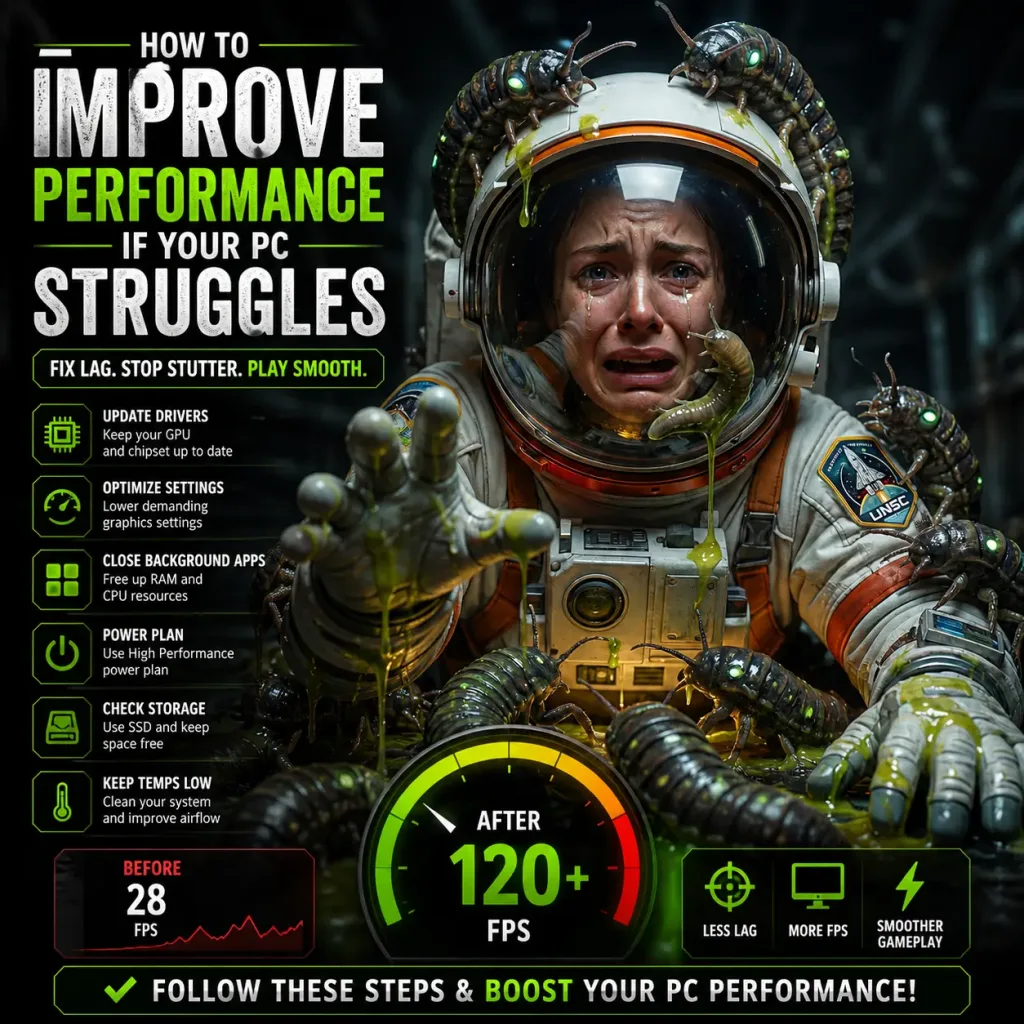
Settings cuts alone sometimes are not enough. These steps address the underlying causes before you start lowering visual quality.
Update your GPU drivers: Driver releases often include game-specific optimizations. NVIDIA and AMD both release driver updates timed around major titles. An outdated driver can cost meaningful performance, particularly on newer GPUs. Check NVIDIA’s driver page or your AMD software for the latest version.
Close background applications: Shut down Discord, Chrome, streaming apps, and any software running in the system tray. Use Task Manager to check what is consuming RAM before you launch. Freeing up 2-4 GB of RAM before loading the game can change the experience on minimum-spec systems.
Move the game to an SSD: If you are running Project Entropy from a mechanical hard drive, stuttering during exploration and combat loading is expected behavior. Moving the game to any SSD, even a budget SATA model, removes an entire category of stutter. This single step has the highest impact-to-cost ratio for players on HDDs.
Lower the most expensive settings first: Use the table above as your priority list. Shadows and ambient occlusion should be the first things you cut. Dropping texture quality last, since it does not affect GPU core performance and the visual degradation is immediately noticeable.
Check your CPU and GPU temperatures: Thermal throttling reduces performance without any warning. If your CPU or GPU hits its thermal limit, it automatically drops clock speeds to protect itself. MSI Afterburner with the RTSS overlay shows both temperatures and clock speeds in real time. If temps exceed 85-90C under load, thermal management should be addressed before anything else.
If you have applied every fix above and still see consistent stuttering or FPS drops, the issue may be more specific to your configuration. The Project Entropy stuttering fix guide and the Project Entropy FPS drops fix guide go deeper into system-level causes and targeted solutions.
Frequently asked questions
Is Project Entropy demanding on PC?
Yes. Project Entropy is moderately demanding, especially on CPU and RAM during large-scale battles. Systems that meet only the minimum requirements may experience unstable performance and stuttering.
Can Project Entropy run on a low-end PC?
Yes, with adjustments. On hardware around the GTX 1060 level, the game will run at 1080p Low to Medium settings with expected FPS in the 40-60 range. Frame pacing may still be inconsistent in demanding scenes. An SSD and 16 GB RAM are more impactful upgrades than a GPU for low-end systems that stutter regardless of settings.
How much RAM do you need for Project Entropy?
16 GB is the practical minimum for stable performance. The official minimum spec lists 8 GB, but Windows background usage leaves little headroom at that level, causing stuttering from memory pressure. 16 GB eliminates this category of issue. 32 GB provides no meaningful performance advantage for this title.
Is CPU or GPU more important for Project Entropy?
At 1080p, the CPU is more likely to be your bottleneck, particularly in combat-heavy or populated scenes. At 1440p and above, the GPU becomes the primary limiter. If your GPU sits below 90% utilization while FPS is low, focus on your CPU. If GPU utilization is maxed out, either lower settings or upgrade the GPU.
Does Project Entropy benefit from an SSD?
Significantly, yes. Texture streaming and asset loading are tied to storage speed. On an HDD, micro-stutters during exploration are a storage bottleneck, not a GPU or CPU issue. Moving to an SSD resolves this entirely and is one of the most effective performance upgrades available for players on older hardware.
What resolution should I target on recommended specs?
At the recommended spec level, 1080p High is the stable target. 1440p is achievable at Medium to High settings with some cuts applied. Ultra settings at 1440p will push most recommended-tier GPUs beyond their comfortable performance range without upscaling enabled.
Apply the settings cuts from the table above and close background apps before your next session. Most players on mid-range hardware see a noticeable improvement from those two steps alone, without touching anything else. If your system meets the requirements but performance still feels inconsistent, your issue is not hardware, it’s configuration. Start with the stuttering fix guide to diagnose the exact cause.
If your PC meets Project Entropy system requirements but performance is still inconsistent, the issue is likely related to settings or system configuration
Sourced by Anir | FPSFlow.com
Hardware reference: RTX 2070 + Ryzen 7 3700X, 16 GB DDR4, NVMe SSD
Last updated: March 2026
Method: Official spec analysis, community performance reports, and industry benchmark patterns from comparable engine-based titles. No first-party benchmark data available at time of writing. Performance figures marked as expected ranges.




