The Project Entropy low FPS fix most players need is simpler than it looks. Your PC should handle this game, but the frame rate says otherwise. That gap between expected and actual FPS is the most common performance problem, and it almost always has a fixable cause. This guide covers the real reasons, starting with the fastest solutions and moving into deeper system fixes if the quick wins are not enough.
📋 Table of Contents
TL;DR: Most low FPS in Project Entropy comes from incorrect in-game settings, GPU underutilization, or background CPU load. Cap your frame rate, switch to DirectX 12, disable VSync in-game, and set power mode to High Performance. Those four changes fix the majority of cases on mid-range hardware.
Project Entropy Low FPS Fix: In-Game Settings First
Apply these in under two minutes before doing anything else.

Grab Your 6★ Weapon Before It's Gone!
- Free-to-play strategy
- Optimized for Windows PC

Start With 10,000+ Oroberyls , Hit Play!
- Arknights: Endfield — Free on PC. 10,000
- Oroberyls up for grabs.

Your Squad's Waiting. Jump In Free!
- New Homecoming Expansion: 2 Maps, 2 Operators, 1 Free 6★ Weapon: $0.
- Action RPG - Base Building on PC-Play Free, Keep Your Progress on Mobile.
- Set your power plan to High Performance (Windows search: “power plan”)
- Disable VSync inside the game settings menu
- Set Frame Rate Limit to your monitor’s refresh rate (not “unlimited”)
- Close background apps: Discord overlay, browser, GeForce Experience in-system tray
Got 10 more minutes? Keep reading for the full breakdown.
Why you have low FPS in Project Entropy
Low FPS here rarely comes from a single cause. This usually happens when the game is bottlenecked by one component while the other sits idle, or when Windows and driver settings are not configured for gaming load.
The three most common causes are:
- GPU underutilization — the game is not fully loading the GPU, so frames are capped by CPU or driver overhead
- Wrong API or rendering path — Project Entropy defaults can conflict with certain GPU generations
- Thermal or power limits — your GPU or CPU is hitting its limit and throttling mid-session
This tends to affect mid-range GPUs like the RTX 3060 or RX 6600 the most, because these cards have enough raw power but are sensitive to software-side bottlenecks. Stuttering often appears during combat or when new areas are loading, which points to asset streaming and CPU scheduling rather than raw GPU headroom.
Before changing anything in-game, check your GPU usage in Task Manager or MSI Afterburner. If GPU usage is sitting at 40-70% while FPS is low, you have a CPU or driver bottleneck, not a GPU problem. That changes what to fix first.
[[IMAGE_REQUIRED: MSI Afterburner overlay showing GPU usage percentage and frame time graph in Project Entropy during gameplay, with GPU usage column highlighted]]
Quick fixes to boost FPS immediately in Project Entropy
Start here. These settings have the highest impact with the least risk.
Switch the rendering API to DirectX 12
Go to Settings > Graphics > API and select DirectX 12. On most modern GPUs (RTX 20 series and newer, RX 5000 and newer), DX12 reduces CPU overhead and allows better GPU utilization. If DX12 causes instability, fall back to DX11, but try DX12 first.
Disable in-game VSync
VSync in Project Entropy introduces frame latency and often causes FPS to lock to incorrect targets on variable refresh monitors. Turn it off in-game and manage sync through your GPU driver panel (G-Sync or FreeSync) instead.
Set a frame rate cap
Unlimited frame rates force your GPU to render more frames than needed, which generates heat and causes instability. Set the in-game cap to match your monitor’s refresh rate. If you have a 144Hz monitor, cap at 144. This alone stabilizes frame times on most setups.
Use the recommended in-game settings
| Setting | Recommended | Impact | Notes |
|---|---|---|---|
| Render Resolution | 100% | High | Do not drop below 85% |
| Shadow Quality | Medium | High | Biggest GPU cost outside resolution |
| Ambient Occlusion | Off or Low | Medium | High cost, low visual return |
| Anti-Aliasing | TAA or FXAA | Medium | MSAA tanks FPS on mid-range GPUs |
| Texture Quality | High | Low | VRAM-bound, not GPU-bound |
| VSync | Off | High | Disable in-game, manage via driver |
| Frame Rate Limit | Monitor Hz | Medium | Prevents GPU overload |
[[IMAGE_REQUIRED: Project Entropy in-game graphics settings menu with Shadow Quality set to Medium and VSync set to Off, options highlighted]]
Start with shadows and ambient occlusion. Those two settings recover more FPS than anything else at a comparable visual cost.
For a full breakdown of what each setting does to frame time, see our Project Entropy best settings guide.
Advanced fixes for GPU, CPU, and system issues
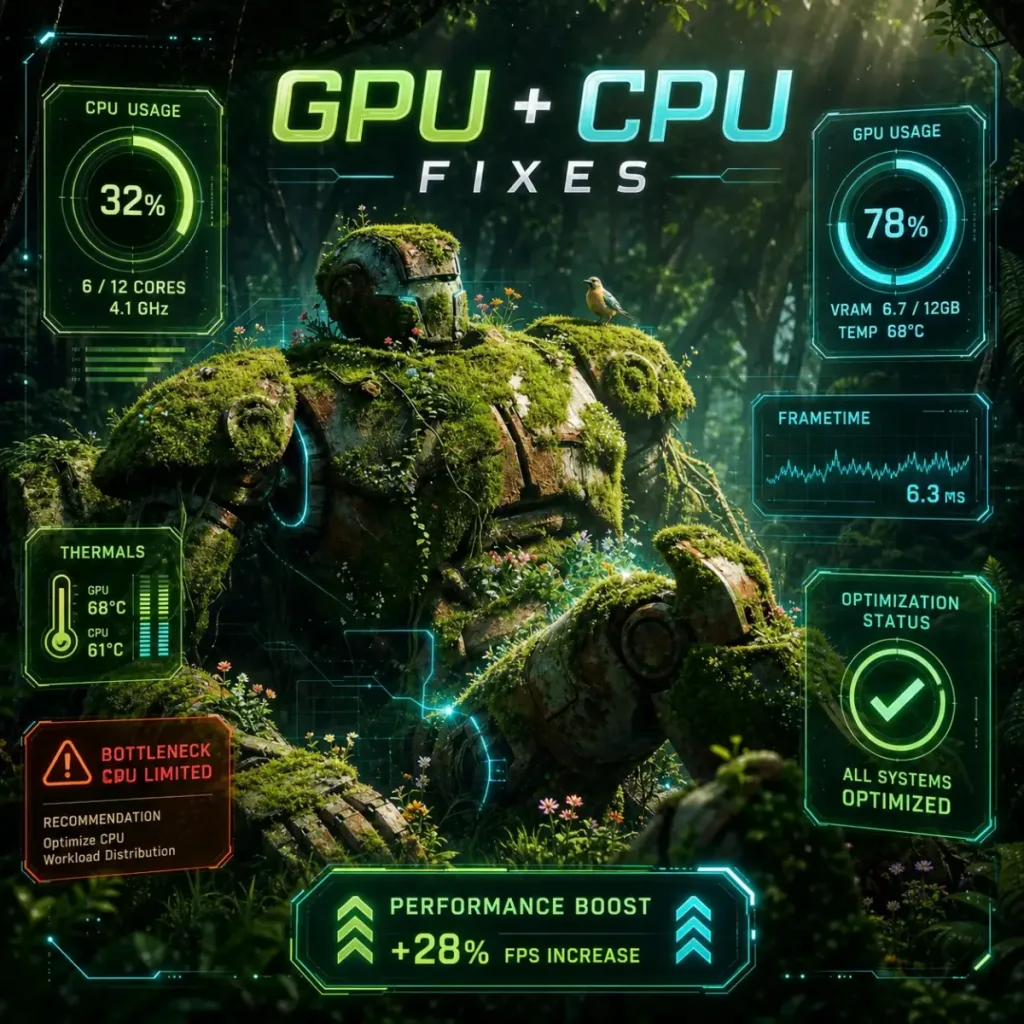
If the quick wins above did not solve the Project Entropy low FPS fix, the problem is deeper in your system configuration. Work through these in order.
Fix low GPU usage in Project Entropy
Low GPU usage with low FPS is a CPU bottleneck or a driver scheduling issue. Here is what to check:
- CPU affinity — Open Task Manager, find Project Entropy, right-click > Set Affinity. Make sure all cores are checked
- GPU driver settings — In NVIDIA Control Panel or AMD Software, set Power Management Mode to “Prefer Maximum Performance” for Project Entropy specifically
- Shader pre-compilation — If the game has a shader compilation step on first launch, let it finish completely before judging performance
- Background CPU load — Check CPU usage at idle. If it is above 15-20% before launching the game, something is consuming cycles. Windows Update, antivirus scans, and cloud sync processes are common causes
In most cases, low GPU usage comes from the game being CPU-limited in specific scenes. FPS drops are more noticeable when new assets are loading or during large combat encounters with many particle effects.
Update or clean-install GPU drivers
Outdated drivers are a consistent cause of underperformance in newer releases. Use DDU (Display Driver Uninstaller) in safe mode to fully remove the existing driver, then install the latest from NVIDIA or AMD directly.
Do not use Windows Update for GPU drivers. It delivers older versions.
Check thermals
If your FPS drops gradually over a session rather than from the start, thermal throttling is the likely cause. Download HWMonitor and watch GPU and CPU temps during gameplay. If your GPU exceeds 85°C or your CPU exceeds 90°C, the system is throttling.
Quick fixes for thermals:
- Clean dust from fans and heatsinks
- Reapply thermal paste if the system is 3+ years old
- Increase case airflow (add intake fans if possible)
- Raise the fan curve in GPU software
Results may vary depending on your specific cooling setup and how long the system has been running without maintenance.
[[IMAGE_REQUIRED: HWMonitor showing GPU temperature and CPU temperature columns during Project Entropy gameplay, with temperature values visible]]
Adjust Windows settings for gaming
- Game Mode: On (Windows Settings > Gaming > Game Mode)
- Hardware-Accelerated GPU Scheduling (HAGS): On for NVIDIA RTX 30/40 series and AMD RX 6000/7000 series (Device Manager > Display Adapters > Properties > Driver)
- XMP/EXPO for RAM: Enabled in BIOS (ensures RAM runs at its rated speed, not default 2133MHz)
Older CPUs may struggle with Project Entropy in CPU-heavy areas even with these settings applied. If your CPU is more than 5-6 generations old and you are bottlenecked, software optimization has a ceiling.
Frequently asked questions
Why is Project Entropy running at low FPS on a good PC?
This usually happens when the game is bottlenecked by the CPU rather than the GPU, or when driver settings are not configured for performance. Check GPU usage first. If it is below 80% during gameplay, the bottleneck is elsewhere, and in-game graphics settings will not help much.
How do I fix low GPU usage in Project Entropy?
Set your GPU power management to “Prefer Maximum Performance” in the NVIDIA Control Panel or AMD Software. Also check that no background process is saturating your CPU. If GPU usage stays low after those changes, try switching the rendering API to DirectX 12 in the graphics settings.
Why does FPS drop randomly in Project Entropy?
Random FPS drops are most often caused by shader compilation hitches (common in the first few hours of play), thermal throttling, or background CPU spikes from Windows processes. Monitor your CPU and GPU usage and temperature during a drop to identify which component is causing it.
Common issues and fixes
Issue: FPS is fine in menus but drops immediately in gameplay Fix: This is almost always a power plan issue. Set Windows power plan to High Performance and enable “Prefer Maximum Performance” in the GPU driver panel. The GPU is downclocking because Windows is not signaling a sustained load.
Issue: Frame rate is stable but the game feels stuttery Fix: Frame time inconsistency, not low FPS average. Enable a frame time graph in MSI Afterburner. Disable background apps with overlays (Discord, Steam overlay, GeForce Experience overlay). Each overlay adds latency to the render pipeline.
Issue: Game launches at 30 FPS and stays there Fix: VSync is likely locking to half your monitor’s refresh rate. Disable VSync in-game and check your GPU driver panel for any forced VSync settings. Also confirm the game is not set to run on your integrated GPU (check in Windows Graphics Settings under the app-specific settings).
Issue: Performance gets worse the longer you play Fix: Thermal throttling. Check GPU and CPU temps with HWMonitor. Clean your system and raise the fan curve. If temps are fine, check for a memory leak by watching RAM usage over time in Task Manager.
Quick checklist before you launch
- Power plan set to High Performance
- In-game VSync off
- Frame rate cap set to monitor Hz
- GPU driver updated (not via Windows Update)
- HAGS enabled for RTX 30/40 or RX 6000/7000 series
- XMP/EXPO enabled in BIOS
- Overlays disabled (Discord, Steam, GeForce Experience)
- No background apps consuming CPU
- Thermals confirmed below throttle threshold
With these fixes in place, most mid-range setups should see a stable 60+ FPS without significant drops. If you are still seeing hitches after working through this list, the problem is likely tied to a specific hardware configuration. Check our Project Entropy system requirements guide to confirm your setup meets the recommended specs, and see our Project Entropy stuttering fix for frame time-specific issues that go beyond raw FPS.
Written by Anir | FPSFlow.com Focus: PC performance optimization and FPS troubleshooting Last updated: March 2025 Method: Based on aggregated player reports, common hardware behavior, and optimization best practices
x²




