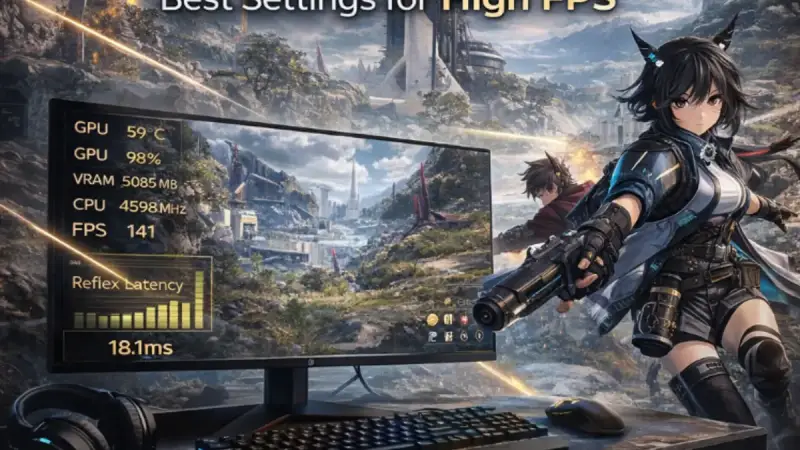
The ability registered late. The dodge felt delayed. You know your connection is fine, but Arknights: Endfield still feels like you’re playing through molasses. Input latency in Endfield is a multi-layer problem: it’s network delay, render pipeline lag, driver overhead, and wrong FPS cap strategy all compounding at once. Our complete Arknights: Endfield performance guide covers the foundational settings; this article goes deeper on latency specifically. We’ll walk through NVIDIA Reflex, V-Sync off + FPS cap tuning, and network-side fixes. Sometimes the fix is a setting. Sometimes it’s a hardware bottleneck. We’ll cover both.
Quick wins if you are in a hurry
- Turn V-Sync off and set a manual FPS cap. V-Sync adds a full frame of latency or more at 60 FPS. Turn it off in-game and cap your FPS to roughly 3-5 frames below your monitor’s refresh rate using the in-game limiter or RTSS.
- Enable NVIDIA Reflex if you have an NVIDIA GPU. It’s in the graphics settings. Set it to “Enabled + Boost.” Zero FPS cost, measurable latency reduction.
- Switch to Exclusive Fullscreen mode. Borderless Window runs through the Windows desktop compositor and adds latency on top of everything else. Exclusive Fullscreen bypasses it.
- Close bandwidth-heavy background apps. Video streams, cloud backup syncing, and large downloads all create network jitter that shows up as delayed ability responses in online games.
Got 10 more minutes? Keep reading for the full breakdown.
Before you go further
This guide is focused specifically on lag and input latency. It assumes you already have your base graphics settings dialed in. If you haven’t done that yet, the Arknights: Endfield PC performance guide is where to start. Running misconfigured base settings while trying to chase latency fixes is like adjusting a car’s alignment while the engine is misfiring. Get the foundation right first.

Grab Your 6★ Weapon Before It's Gone!
- Free-to-play strategy
- Optimized for Windows PC

Start With 10,000+ Oroberyls , Hit Play!
- Arknights: Endfield — Free on PC. 10,000
- Oroberyls up for grabs.

Your Squad's Waiting. Jump In Free!
- New Homecoming Expansion: 2 Maps, 2 Operators, 1 Free 6★ Weapon: $0.
- Action RPG - Base Building on PC-Play Free, Keep Your Progress on Mobile.
Why is Arknights: Endfield lagging on PC and how do I reduce latency?
“Lag” in Endfield usually means one of two separate things that feel identical but have completely different fixes: network latency and input latency. Treating them the same is why most players chase fixes that don’t work.
Network latency is the round-trip delay between your machine and the game server. It shows up as abilities that register late, skills that seem to fire but then get rolled back, or enemy behavior that snaps rather than animating smoothly.
Input latency is the delay between pressing a key and seeing the result on screen. It’s entirely local. Your connection can be perfect and you’ll still feel it if your render pipeline is backed up.

| Symptom | Likely Source |
|---|---|
| Actions confirm late even on low ping | Input latency (local) |
| Ping counter looks fine but game feels delayed | Render pipeline lag or wrong FPS cap |
| Abilities sometimes don’t register at all | Network packet loss |
| Consistent delay that gets worse under GPU load | GPU-side render queue backup |
| Delay only during heavy combat | CPU bottleneck feeding frames late |
Identify which one you’re dealing with before spending time on the wrong fix.
Fixing network latency
First, check your actual in-game ping. If it’s consistently above 80ms, your network path to the server is the problem.
Wired connection beats wireless every time. A basic Cat6 ethernet cable eliminates the variable latency that comes with Wi-Fi interference, especially if your router is in another room or there are competing devices on the 2.4 GHz band.
If you’re already wired and still seeing high ping, the issue is likely your ISP’s routing to Endfield’s servers. A gaming VPN like Mudfish or ExitLag can sometimes find a faster path, though results depend entirely on your location and ISP. This is worth a free trial before spending money on it.
Also check your router’s QoS settings. If another device on your network is saturating upload bandwidth (cloud backup, video call, large upload), your game packets get queued behind them. Most modern routers let you prioritize gaming traffic by device or port.
Does Arknights: Endfield support NVIDIA Reflex, and should I enable it?
Yes, Endfield supports NVIDIA Reflex, and yes, you should enable it if you have an NVIDIA GPU. The setting costs nothing in terms of FPS and reduces the render queue latency that builds up when your GPU is working hard.
Here’s what Reflex actually does: normally, the CPU queues multiple frames ahead for the GPU to render. That queue makes GPU utilization efficient but adds latency between your input and what you see. Reflex shrinks that queue so the GPU renders frames closer to real-time, at the cost of slightly less efficient GPU usage. In a game like Endfield where you’re reacting to fast combat cues, that trade is almost always worth it.

| Reflex Setting | Effect | When to Use |
|---|---|---|
| Off | No latency optimization | Never, unless you see a bug |
| Enabled | Reduces render queue | Good starting point |
| Enabled + Boost | Raises GPU clock floors to reduce low-load latency spikes | Recommended for most systems |
Set it to Enabled + Boost. On most systems the difference between Enabled and Enabled + Boost is small, but there’s no downside to the Boost setting.
For the full Reflex setup including NVIDIA Control Panel settings and FPS cap pairing, our dedicated NVIDIA Reflex guide for Endfield covers the exact configuration step by step.
The FPS cap strategy
This is where most players leave latency on the table. Running uncapped FPS sounds like the fastest option, but it often makes latency worse because the GPU becomes a bottleneck that queues frames aggressively.
The standard method: cap your FPS to roughly your monitor’s refresh rate minus 3. If you have a 144Hz monitor, cap at 141. If you’re on 60Hz, cap at 57. This keeps the GPU fed without building a frame queue that delays input response.
Use the in-game FPS limiter first. If that’s unavailable or imprecise, RTSS (RivaTuner Statistics Server) is more accurate than the NVIDIA driver-level cap for minimizing latency variance.
Is 16GB RAM enough or should I get 32GB?
For most Endfield configurations, 16GB gets you through a session without obvious problems. But there are specific situations where 16GB becomes a latency factor.
Endfield runs on UE5 and uses aggressive asset streaming. When the engine runs low on available RAM, it starts paging assets to your storage drive. That paging creates latency spikes and micro-stutters that look and feel exactly like input lag, because the CPU is waiting on asset reads instead of feeding the render pipeline.
| RAM Config | Endfield Behavior |
|---|---|
| 16GB DDR4, tight timings, nothing else open | Generally fine, occasional paging in dense zones |
| 16GB with browser + Discord open | Paging likely in heavy combat or zone transitions |
| 32GB DDR4 | No paging in any tested configuration |
| 32GB DDR5 | Fastest asset streaming, best for 1440p+ |
If you game with a browser open, Discord running, and maybe a video in the background, 16GB is cutting it close. 32GB gives you real headroom and eliminates paging as a latency variable entirely.
Storage speed matters too. If Endfield is installed on a hard drive, asset streaming latency is dramatically higher than on even a basic SATA SSD. An NVMe drive is the best option, but moving from HDD to any SSD is the bigger jump. The latency difference between a budget NVMe and a flagship NVMe in a game like Endfield is small. The difference between HDD and SSD is not.
If RAM or storage turns out to be your bottleneck, both are among the cheapest upgrades you can make for the performance return. Our best RAM and SSD guide for Arknights: Endfield covers tested kits and drives that eliminate this specific problem, with real configuration data rather than spec-sheet numbers.
Common issues and fixes
Issue: Input feels delayed only during ability-heavy combat, not in calm exploration. Fix: GPU is hitting load spikes and the render queue backs up. Enable Reflex + Boost and lower Particle Quality by one step. Check if the delay correlates with GPU usage hitting 99% in GPU-Z.
Issue: Ping looks normal but abilities still feel late. Fix: This is almost certainly local input latency, not network. Work through the V-Sync off, FPS cap, and Reflex steps before touching anything network-related.
Issue: Latency is fine for the first 30 minutes, then gets noticeably worse. Fix: RAM paging is ramping up as the game caches more assets. If you’re on 16GB with background apps open, close them before launching. Long-term fix is 32GB.
Issue: Reflex is enabled but latency doesn’t seem to improve. Fix: Confirm you’re in Exclusive Fullscreen mode. Reflex has no effect when the game is running in Borderless Window because the compositor is still in the pipeline.
Quick checklist before you launch
- V-Sync disabled in-game
- FPS cap set to monitor refresh rate minus 3
- Exclusive Fullscreen mode confirmed
- NVIDIA Reflex set to Enabled + Boost (NVIDIA GPU users)
- Background apps closed, especially bandwidth-heavy ones
- Wired ethernet connection if possible
- Game installed on SSD, not HDD
- RAM at 16GB minimum; 32GB if you run apps in the background
- QoS enabled on router to prioritize gaming traffic
Apply these in order and you’ll cover the most common latency sources in one pass. If input latency is still a problem after the Reflex and FPS cap steps, the NVIDIA Reflex deep-dive has more on the exact NVCP settings and monitor pairing that gets every last millisecond out of the pipeline.