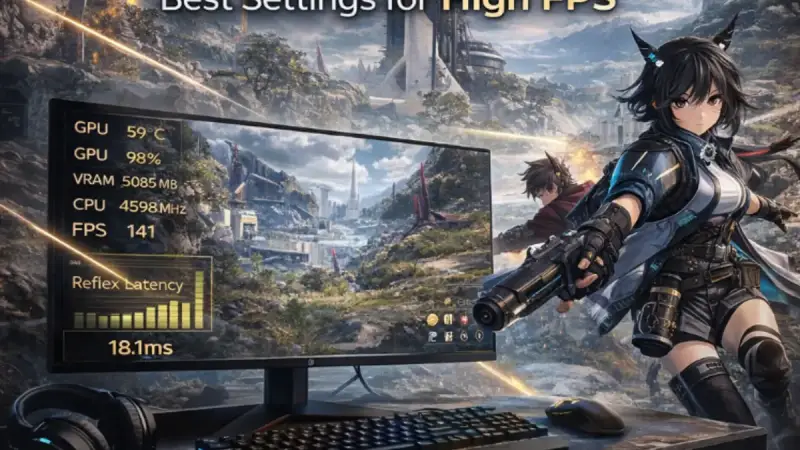
NVIDIA Reflex is one of the few settings that costs you zero FPS and can meaningfully change how responsive Arknights Endfield feels, but only if you set it up correctly. Enable it wrong and you leave latency savings on the table. This guide covers what Reflex actually does inside Endfield’s render pipeline, how to configure both the in-game toggle and NVIDIA Control Panel settings together, and what FPS cap to use for minimum measured latency. Our Arknights: Endfield performance guide covers the full settings picture. This article is the latency-specific deep dive for players who want every millisecond back, including how your monitor factors into the equation.
📋 Table of Contents
Quick wins if you are in a hurry
- Enable Reflex and set it to Enabled + Boost. The Boost setting raises GPU clock floors during low-load moments to reduce latency spikes. No FPS cost. Do this first before anything else.
- Turn V-Sync off in-game. V-Sync and Reflex work against each other. V-Sync queues frames to synchronize delivery; Reflex tries to eliminate that queue. Running both at once cancels most of Reflex’s benefit.
- Set a manual FPS cap at your monitor’s refresh rate minus 3. On a 144Hz monitor, cap at 141. On 60Hz, cap at 57. This is the correct pairing for Reflex to work at its best.
- Confirm you are in Exclusive Fullscreen mode. Reflex has no meaningful effect in Borderless Window because the Windows desktop compositor stays in the pipeline regardless.
Got 10 more minutes? Keep reading for the full breakdown.
Before you go further
Reflex is a latency optimization layer, not a performance one. It will not fix low FPS, stuttering, or network lag. If any of those are your primary issue, start with the Arknights: Endfield performance guide for settings, or the stuttering fix guide for stutter-specific problems. Come back here once your base performance is stable and you want to squeeze responsiveness out of what you already have.

Grab Your 6★ Weapon Before It's Gone!
- Free-to-play strategy
- Optimized for Windows PC

Start With 10,000+ Oroberyls , Hit Play!
- Arknights: Endfield — Free on PC. 10,000
- Oroberyls up for grabs.

Your Squad's Waiting. Jump In Free!
- New Homecoming Expansion: 2 Maps, 2 Operators, 1 Free 6★ Weapon: $0.
- Action RPG - Base Building on PC-Play Free, Keep Your Progress on Mobile.
Does Arknights: Endfield support NVIDIA Reflex, and should I enable it?

Yes, Endfield supports NVIDIA Reflex natively. And yes, you should enable it if you have any NVIDIA GPU from the GTX 10 series onward, though the effect is most pronounced on RTX hardware under real gaming load.
Here is what Reflex actually does, because the in-game tooltip doesn’t explain it well.
Normally, the CPU submits rendering work to the GPU one or more frames ahead of time. This pre-submission creates a render queue that keeps the GPU fed efficiently, which is great for raw throughput but bad for latency. Each frame sitting in that queue is a frame that hasn’t responded to your most recent input yet. At 60 FPS that queue can represent 30-50ms of added latency before your input reaches the screen, according to NVIDIA’s own latency analysis documentation.
Reflex shrinks that queue by synchronizing CPU submission timing with GPU readiness. The GPU renders frames closer to when inputs actually happen, at the cost of slightly less efficient GPU utilization. In a game like Endfield where you’re reacting to ability timings and dodge windows, that trade is almost always worth it.
| Reflex Setting | What It Does | When to Use |
|---|---|---|
| Off | No queue management; default render pipeline | Never, unless debugging a specific Reflex-related bug |
| Enabled | Synchronizes CPU-GPU submission to reduce render queue | Good baseline; use if Boost causes issues |
| Enabled + Boost | Additionally raises GPU clocks during low-load frames to prevent latency spikes | Recommended for most systems |
The difference between Enabled and Enabled + Boost is small on systems where the GPU is consistently loaded. On systems that alternate between light and heavy load (exploration versus combat), Boost prevents the clock ramp-up lag that can cause brief latency spikes when combat starts. Use Enabled + Boost.
How to configure NVIDIA Reflex correctly in Endfield
The in-game toggle is only half the equation. NVIDIA Control Panel has settings that interact directly with Reflex’s effectiveness, and most guides stop at the in-game toggle without covering them.
Step 1: In-game setting
Navigate to Settings > Graphics > Advanced. Find NVIDIA Reflex Low Latency and set it to Enabled + Boost.
Step 2: NVIDIA Control Panel configuration
Open NVIDIA Control Panel > Manage 3D Settings > Program Settings. Add Arknights: Endfield to the program list if it’s not already there, then configure:
| NVCP Setting | Recommended Value | Why |
|---|---|---|
| Low Latency Mode | Off | Reflex supersedes this; running both creates conflicts |
| Max Frame Rate | Off (use in-game cap instead) | In-game limiter is more precise for Reflex pairing |
| Power Management Mode | Prefer Maximum Performance | Prevents GPU clock drops that spike latency |
| Vertical Sync | Off | Confirmed off at driver level, not just in-game |
| Triple Buffering | Off | Adds frame queue; works against Reflex |
The most common mistake is leaving Low Latency Mode set to “Ultra” in NVCP while also running Reflex. These two features attempt to do similar things through different mechanisms and they conflict. When Reflex is active, NVCP’s Low Latency Mode should be Off. NVIDIA’s own documentation confirms Reflex takes precedence and the NVCP setting becomes irrelevant, but leaving it on Ultra can cause inconsistent behavior in some driver versions.
Step 3: FPS cap
Reflex works best when the GPU is not running fully saturated. A saturated GPU builds a render queue regardless of Reflex because there is no idle time for the synchronization mechanism to work with.
The correct approach is an FPS cap set just below your monitor’s maximum refresh rate:
| Monitor Refresh Rate | Recommended FPS Cap |
|---|---|
| 60Hz | 57 |
| 144Hz | 141 |
| 165Hz | 162 |
| 240Hz | 237 |
| 280Hz | 277 |
Use the in-game FPS limiter first. If Endfield’s in-game limiter doesn’t offer fine-grained control, use RTSS (RivaTuner Statistics Server) as a secondary option. RTSS is more precise than the NVIDIA driver-level cap for sub-millisecond frame timing, based on testing documented by Blur Busters.
Do not run uncapped. Uncapped FPS with Reflex enabled sounds counterintuitive to avoid, but a GPU running at 100% utilization trying to render 400 FPS on a 144Hz system is building exactly the frame queue Reflex is trying to eliminate. Cap it.
What are the best settings for 120 FPS competitive play and low latency?

Competitive play in Endfield means consistent high FPS, low input latency, and the ability to react to fast combat events accurately. Reflex is one piece. The full configuration looks like this:
| Setting | Competitive Value | Notes |
|---|---|---|
| NVIDIA Reflex | Enabled + Boost | Non-negotiable for this goal |
| V-Sync | Off | Both in-game and NVCP |
| FPS Cap | Monitor refresh minus 3 | See table above |
| Display Mode | Exclusive Fullscreen | Compositor bypass |
| Shadow Quality | Medium-High | Drop if needed to maintain FPS above cap |
| Particle Quality | High | Drop to Medium if combat dips below cap |
| Motion Blur | Off | Always off for reaction-based play |
| Depth of Field | Off | |
| DLSS Frame Generation | Off (at this target) | Frame Gen adds pipeline latency; at 120 FPS base, you don’t need it |
The Frame Generation note is worth expanding. If your base framerate is already hitting 120 FPS, enabling Frame Generation adds latency for no benefit you can feel. Frame Generation is most useful when your base framerate is in the 50-80 range and you want to push displayed smoothness higher. At 120 FPS base on a 144Hz monitor, you are already in a latency-optimal state with Reflex. Adding Frame Generation here is counterproductive for competitive play.
How do I reduce latency on PC in Arknights: Endfield?
Reflex handles the render pipeline side. But total system latency includes more than just the GPU queue. Here is the full chain and where to address each part:
| Latency Source | Typical Contribution | Fix |
|---|---|---|
| Input device polling rate | 1-8ms (mouse/keyboard) | Use a 1000Hz polling rate mouse; 8000Hz for minimal impact |
| CPU frame submission timing | 10-50ms without Reflex | NVIDIA Reflex |
| GPU render time | Varies by load | Settings optimization + FPS cap |
| Display pixel response | 1-5ms (gaming monitor) | 1ms GtG rated panel |
| Display scan-out latency | 1-7ms depending on refresh | Higher refresh rate monitor |
| V-Sync queue | 8-16ms at 60Hz | Turn V-Sync off |
Reflex addresses the CPU frame submission and GPU queue portions, which are typically the largest contributors after display. But if your monitor is a 60Hz panel with 5ms response time, there is a hard ceiling on what Reflex can deliver regardless of how well the rest is configured. The total system latency chain matters.
Pairing Reflex with a high-refresh VRR panel is where the combined gains become genuinely felt during gameplay rather than just measured. A 144Hz or 165Hz monitor with G-Sync or FreeSync eliminates tearing without V-Sync’s latency penalty, and lets Reflex’s frame timing work without a fixed-rate constraint fighting against it. Our best monitor guide for Arknights: Endfield covers tested 144Hz through 280Hz picks specifically chosen for low input lag, VRR quality, and Reflex compatibility across the $149-$299 range.
Common issues and fixes
Issue: Reflex is enabled but the game still feels delayed during combat. Fix: Check that Low Latency Mode in NVIDIA Control Panel is set to Off, not Ultra. Running both creates conflicts. Also confirm you are in Exclusive Fullscreen and not Borderless Window.
Issue: Enabling Reflex caused FPS to drop noticeably. Fix: This should not happen under normal conditions. If it does, your GPU was already running at very high utilization and Reflex’s clock management is interfering. Try Enabled without Boost first. Also check your driver version, very new day-one drivers occasionally have Reflex implementation bugs.
Issue: No Reflex option appears in Endfield’s graphics settings. Fix: Confirm you have an NVIDIA GPU and that GeForce drivers are up to date. Also verify the game is set to use your discrete NVIDIA GPU and not integrated graphics, which does not support Reflex.
Issue: FPS cap is set correctly but latency still feels inconsistent. Fix: Check background processes. A process intermittently spiking CPU usage will cause irregular frame submission even with Reflex active. Also verify Windows Power Plan is set to High Performance so CPU clocks don’t drop between frames.
Quick checklist before you launch
- NVIDIA Reflex set to Enabled + Boost in-game
- V-Sync off both in-game and in NVIDIA Control Panel
- NVCP Low Latency Mode set to Off (not Ultra)
- NVCP Power Management Mode set to Prefer Maximum Performance
- NVCP Triple Buffering set to Off
- FPS cap set to monitor refresh rate minus 3
- Exclusive Fullscreen mode confirmed
- Windows Power Plan set to High Performance
- Motion Blur and Depth of Field both off
- Game assigned to discrete NVIDIA GPU in NVCP
Reflex and a proper FPS cap will get the render pipeline side of latency as low as it can go on your current hardware. If you’re also seeing input lag that seems network-related, abilities registering late even when everything above is configured correctly, that’s a different layer. The lag and input latency fix guide covers the network side and RAM paging factors that Reflex doesn’t touch.