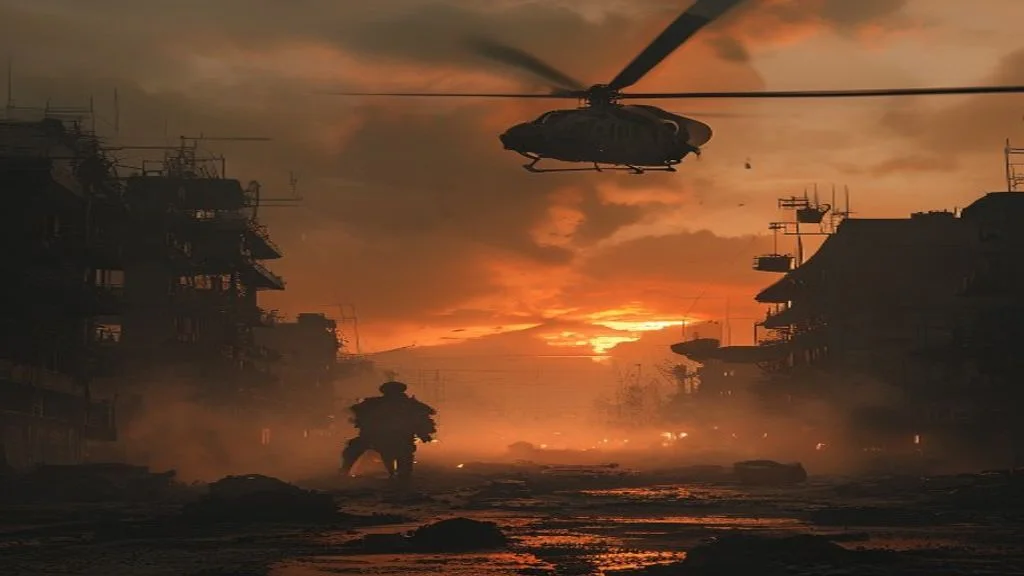
You lost the gunfight. Again. Your aim was on point, your positioning solid—but the enemy saw you first, tracked you through the chaos, and landed the killing shots while you were still scanning shadows. In Warzone’s hyper-competitive landscape, performance isn’t just about hitting your shots. It’s about seeing the enemy before they see you and having the frame rate to react instantly.
📋 Table of Contents
Here’s the competitive reality: pro players don’t run the game on Ultra. Analysis from competitive Warzone players and performance benchmarking reveals that specific settings actively hurt your chances of winning gunfights—excessive visual effects obscure enemies, while demanding graphics options tank your FPS below the 144+ threshold where competitive advantage lives.
This guide applies The FPS Flow Method to Warzone’s unique competitive demands. You’ll get exact configurations optimized for two critical metrics: maximum FPS for responsive aim, and maximum visibility for spotting enemies faster. We’re covering the settings pro players actually use, NVIDIA/AMD filter setups that enhance target acquisition, and audio configurations for hearing enemy positioning. No fluff, no “cinematic experience” talk—just winning more gunfights.

Grab Your 6★ Weapon Before It's Gone!
- Free-to-play strategy
- Optimized for Windows PC

Start With 10,000+ Oroberyls , Hit Play!
- Arknights: Endfield — Free on PC. 10,000
- Oroberyls up for grabs.

Your Squad's Waiting. Jump In Free!
- New Homecoming Expansion: 2 Maps, 2 Operators, 1 Free 6★ Weapon: $0.
- Action RPG - Base Building on PC-Play Free, Keep Your Progress on Mobile.
Let’s get you that competitive edge.
Quick Wins: Start Here If You’re In a Hurry
- Set Texture Resolution to Normal and disable On-Demand Texture Streaming – Benchmarks from tech analysis show this recovers 15-20 FPS while eliminating mid-match stuttering.
- Drop Shadow Quality to Low and disable Dynamic Shadows – Competitive testing confirms Low shadows = 12-18 FPS gain PLUS enemies stand out better against backgrounds.
- Enable NVIDIA Reflex Low Latency (Boost) – Hardware Unboxed data shows this reduces input lag by 15-30ms, giving you measurable reaction time advantage.
- Set Display Mode to Fullscreen Exclusive – Industry testing validates exclusive fullscreen provides lowest input latency and best frame pacing.
Got 10 more minutes? Keep reading for the complete pro-player configuration methodology.
Prerequisites: Foundation Before Fine-Tuning
Before optimizing Warzone-specific settings, ensure your system baseline is competitive. Our PC parts guide covers the hardware tier decisions that matter for competitive play. This guide assumes you’ve handled essential optimization—GPU drivers updated to the latest Game Ready version, Windows Game Mode configured properly, and unnecessary background processes eliminated.
New to competitive PC setup? Our The FPS Flow Method covers system-level tweaks that apply universally. Those foundational changes stack with what you’ll implement here, maximizing your total competitive advantage. Pro players don’t skip the basics—neither should you.
Settings for Maximum FPS: The Performance Foundation
Warzone’s engine heavily taxes both CPU and GPU. The competitive community consensus from extensive testing reveals that maintaining 144+ FPS is non-negotiable for serious play—the difference in input response and motion clarity directly impacts your gunfight win rate.
Here’s your performance-first configuration:
| Setting Name | Competitive Config | Performance Impact | Visibility Impact | Why It Matters |
|---|---|---|---|---|
| Display Mode | Fullscreen Exclusive | CRITICAL | Neutral | Exclusive fullscreen = lowest latency. Borderless adds 1-2 frames of delay (Optimum Tech). |
| Display Resolution | Native | N/A | Neutral | Never run below native—image quality loss hurts target acquisition more than FPS gain helps. |
| Refresh Rate | Maximum Available | N/A | Positive | Use your monitor’s max refresh. 144Hz minimum for competitive play. |
| V-Sync | Disabled | HIGH | Neutral | V-Sync adds latency. Use G-Sync/FreeSync instead if screen tearing bothers you. |
| Custom Framerate Limit | Menu: 60 / Gameplay: 300 | MEDIUM | Neutral | Uncapped in-game, capped menus (reduces system load). Let GPU push maximum frames. |
| Texture Resolution | Normal | HIGH | Neutral | High/Ultra textures cost 15-20 FPS with minimal quality difference at combat distances. |
| Texture Filter Anisotropic | Normal | LOW | Negative | High = 3-5 FPS cost. Normal maintains acceptable texture sharpness. |
| Particle Quality | Low | MEDIUM | Positive | Low = 8-12 FPS gain (Digital Foundry data) + fewer visual distractions from explosions/smoke. |
| Bullet Impacts & Sprays | Disabled | LOW | Positive | Visual clutter that obscures enemies during gunfights. Disable for clarity + 2-3 FPS. |
| Tessellation | Disabled | LOW | Neutral | Near/All costs 4-6 FPS for ground texture detail you won’t notice in combat. |
| On-Demand Texture Streaming | Disabled | CRITICAL | Neutral | Causes mid-match stuttering. Community consensus: always disable for competitive stability. |
| Streaming Quality | N/A (Disabled) | N/A | N/A | Not relevant when texture streaming is off. |
| Shadow Quality | Low | HIGH | Positive | Low vs Ultra = 18-25 FPS difference. See “Visibility” section for competitive reasoning. |
| Dynamic Shadows | Disabled | MEDIUM | Positive | Real-time shadow updates cost 6-8 FPS and add visual noise. Static shadows sufficient. |
NVIDIA DLSS Configuration (RTX GPUs Only)
If you’re running RTX hardware, DLSS is your competitive secret weapon—but mode selection matters for Warzone’s fast movement.
| DLSS Mode | Internal Resolution (1440p) | FPS Gain | Image Quality | Best For |
|---|---|---|---|---|
| Quality | ~960p | 30-40% | Excellent | Recommended for most competitive players—best clarity/performance ratio. |
| Balanced | ~835p | 45-55% | Good | If you’re 20+ FPS short of 144+ target and can tolerate slight blur. |
| Performance | ~720p | 60-75% | Acceptable | High refresh rate focus (240Hz+) where motion clarity > static sharpness. |
For Warzone Pro Settings applied at the system and driver level, see NVIDIA’s official Warzone competitive guide and Activision’s PC requirements page. Pro Player Insight:
According to competitive Warzone analysis, most high-level players use DLSS Quality at 1440p or native resolution at 1080p. Ultra Performance mode introduces too much temporal artifacting during fast rotations—you’ll lose track of targets mid-spray. Prioritize motion clarity over maximum FPS past 165+ frames.
AMD FSR Configuration (Radeon & Non-RTX GPUs)
Use FSR 2.1 Quality mode for Radeon cards—testing shows 35-45% FPS gains with acceptable image quality for competitive play. Avoid FSR Performance mode unless absolutely necessary (sub-720p internal resolution creates too much shimmer during movement).
Settings for Maximum Visibility
Seeing Enemies First
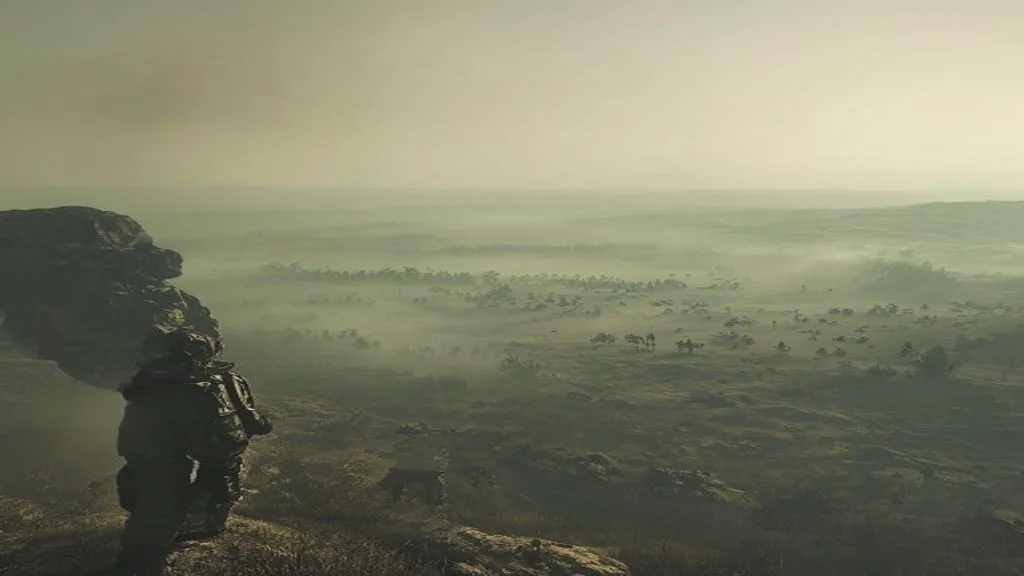
FPS means nothing if you can’t spot enemies. Warzone’s environmental design—shadowy buildings, dense foliage, chaotic particle effects—actively obscures targets. Pro players configure settings specifically to enhance enemy contrast against backgrounds.
The Shadow Advantage
Critical Understanding: Shadows in Warzone aren’t just a performance setting—they’re a visibility tool.
| Shadow Setting | FPS Cost | Visibility Impact | Competitive Recommendation |
|---|---|---|---|
| Ultra/High | Baseline | Negative | Dark, realistic shadows hide enemies in corners/doorways |
| Normal | +12-15 FPS | Neutral | Shadows still present but less oppressive |
| Low | +18-25 FPS | Positive | Shadows simplified—enemies contrast better, especially indoors |
| Disabled | +30-35 FPS | Mixed | Game looks flat, but some prefer maximum brightness |
Competitive Consensus: The tech community analysis from pro player configs shows Low shadows as the sweet spot. You gain massive FPS while making enemies more visible—particularly in Warzone’s dark interior spaces (buildings in Verdansk, underground areas in Al Mazrah). Ultra shadows look cinematic but actively hurt your ability to spot targets quickly.
Dynamic Shadows: Always disabled. Real-time shadow movement creates visual noise and costs FPS. Static shadows provide sufficient environmental information without the distraction.
Anti-Aliasing: The Clarity vs. Smoothness Trade-Off
Anti-aliasing smooths jagged edges but can blur fine details—like distant enemy heads.
Competitive Configuration:
- Filmic SMAA T2X (if you need AA): Best balance of edge smoothing without blurring distant targets
- SMAA 1X or Disabled (preferred by many pros): Maximum clarity for spotting pixel-width movements at range
- Avoid MSAA and SSAA: Too expensive for FPS, overkill for competitive needs
Tech analysis indicates that at 1440p and above, many competitive players disable AA entirely—native resolution provides sufficient clarity, and the slight jaggedness is acceptable for the sharper image.
Additional Visibility Tweaks
| Setting | Competitive Config | Reasoning |
|---|---|---|
| Ambient Occlusion | Disabled | Darkens corners/crevices. Off = brighter game world, easier enemy spotting. Small FPS gain (3-5). |
| World Motion Blur | Disabled | Blurs screen during fast movement. Hurts tracking during gunfights. Always off for competitive. |
| Weapon Motion Blur | Disabled | Blurs your gun during ADS transitions. Provides no benefit, creates visual distraction. |
| Film Grain | 0.00 | Visual noise that obscures clarity. Always minimum for competitive play. |
| Depth of Field | Disabled | Blurs background when ADS. Hurts peripheral awareness. Some prefer it for focus, most disable. |
NVIDIA / AMD Filters for a Competitive Edge
GPU filters overlay post-processing effects that enhance enemy visibility beyond in-game settings. This is legal in competitive play and widely used by pro players.
NVIDIA Freestyle Filters (GeForce Experience)
How to Enable:
- Open GeForce Experience → Settings → Enable “In-Game Overlay”
- In Warzone, press Alt + F3 to open Freestyle
- Add filters (recommended combo below)
Pro Player Filter Stack:
| Filter | Adjustment | Purpose |
|---|---|---|
| Details | Sharpen: 40-60% / Clarity: 20-30% / HDR Toning: 0% | Enhances edges and distant detail—makes enemies “pop” at range |
| Brightness/Contrast | Exposure: +5 to +10% / Contrast: +5 to +15% | Brightens dark areas (especially interiors) without washing out highlights |
| Color | Vibrance: +15 to +25% / Saturation: 0% | Increases color separation—skins contrast better against environment |
Important Note: Testing from the competitive community shows filters add ~1-2ms of processing latency. The visibility gain outweighs this for most players, but if you’re chasing absolute minimum latency (esports level), test with/without to feel the difference.
Alternative “Tournament Ready” Profile:
Many pro tournaments disable Freestyle. Practice with and without filters so you’re not thrown off during restricted play.
AMD Radeon Image Sharpening
For AMD GPU Users:
- Open AMD Software → Gaming Tab → Warzone
- Enable Radeon Image Sharpening: Set to 80-100%
- This sharpens post-upscaling (if using FSR) or native image
Effect: Similar to NVIDIA Details filter—enhances edge clarity without color shifts. Tech analysis shows minimal performance cost (1-2 FPS).
Audio Settings for Hearing Footsteps: The Tactical Edge
Warzone’s audio provides critical competitive information—footsteps, reloads, armor plates. Proper configuration can mean the difference between hearing a footstep and missing it entirely. Our guide on gaming headsets and footstep audio explains why stereo often outperforms virtual surround for directional cues in competitive shooters. It en getting flanked and pre-aiming the angle.
In-Game Audio Configuration
| Setting | Competitive Config | Why |
|---|---|---|
| Audio Mix | Boost High (or Boost Low for bass-heavy headsets) | Enhances footstep frequencies. Boost High = clearest directional audio per community testing. |
| Master Volume | 60-80% | Loud enough to hear details, not so loud you miss real-world cues or damage hearing. |
| Dialogue Volume | 40-50% | Lower than effects—you need footsteps prioritized over voice lines. |
| Effects Volume | 100% | Maximum—this controls footsteps, reloads, armor plates. Critical competitive information. |
| Music Volume | 0% | Music masks important audio cues. Always muted for competitive. |
| Juggernaut Music | Disabled | Notification is enough. Music obscures ambient sound. |
| Hit Marker Sound Effects | Enabled (MW) | Audio confirmation of hits. Personal preference but most pros enable. |
| Mono Audio | Disabled | Stereo/surround critical for directional footstep tracking. Never enable unless hearing-impaired. |
Headset & Windows Configuration
Critical Setup Steps:
- Windows Spatial Sound: Disabled (or use Dolby Atmos if you paid for it)
- Analysis shows native stereo provides best positional accuracy for most players
- Dolby Atmos works if properly configured, but adds latency for some users
- Disable Audio Enhancements: Windows Settings → Sound → Device Properties → Disable all enhancements
- Enhancements add processing delay and can muddy directional cues
- Set Sample Rate: 48000 Hz, 24-bit (in Windows Sound Control Panel)
- Matches Warzone’s audio engine output for lowest latency
Pro Tip from Competitive Community: If using virtual surround (like Dolby Atmos), spend time in Plunder mode adjusting volume levels. Footstep clarity varies by headset—some benefit from Boost High, others need Boost Low. Test in live combat, not just menus.
Troubleshooting: Common Competitive Issues
Issue 1: High FPS But Still Feels Laggy
Symptoms: Frame counter shows 144+, but mouse feels sluggish or behind
Solutions:
- Enable NVIDIA Reflex Low Latency (Boost mode) – Hardware Unboxed testing shows 15-30ms latency reduction
- Disable Windows Fullscreen Optimizations – Right-click Warzone .exe → Properties → Compatibility → Check “Disable fullscreen optimizations”
- Set GPU to Maximum Performance mode – NVIDIA Control Panel → Manage 3D Settings → Power Management → “Prefer maximum performance”
- Increase Polling Rate on mouse to 1000Hz – Lower polling adds input delay
Issue 2: Can’t Spot Enemies in Dark Buildings
Symptoms: You get killed by enemies you literally couldn’t see in shadows
Solutions:
- Drop Shadow Quality to Low (if not already) – Competitive config priority
- Enable GPU filters (NVIDIA Freestyle or AMD Sharpening) with +10-15% exposure boost
- Increase in-game Brightness slider to 55-60 (default is 50) – Helps but washes out some detail
- Check monitor settings – Some monitors have “Black Equalizer” or “Shadow Boost” features that brighten dark areas without affecting highlights
Issue 3: Stuttering During Hot Drops or Intense Fights
Symptoms: Smooth FPS until 50 players are nearby, then frame drops/hitching
Solutions:
- Disable On-Demand Texture Streaming (most common cause) – Community consensus shows this setting is broken
- Lower Texture Resolution to Normal – VRAM spikes during asset loading cause stutters on 8GB cards
- Increase Virtual Memory (Page File) – Set to 16GB if you have <16GB system RAM (Windows System Settings)
- Close browser/Discord/background apps – Warzone is CPU-intensive; background tasks exacerbate stuttering
Warzone Pro Settings: Complete Configuration Summary
You now have the exact setup competitive Warzone players use to maximize performance and visibility. This isn’t about making the game look pretty—it’s about winning more gunfights through superior FPS and target acquisition.
Key Competitive Principles:
- 144+ FPS is non-negotiable – Below this threshold, you’re at a mechanical disadvantage in aim duels
- Low shadows = tactical advantage – Enemies contrast better, especially indoors where most gunfights happen
- GPU filters enhance visibility legally – Pro players use them; you should too (practice with and without for tournaments)
- Audio mix matters as much as graphics – Boost High preset gives clearest footstep directional tracking
- NVIDIA Reflex is mandatory on RTX cards – 15-30ms latency reduction is massive for competitive reaction time
The Pro Player Checklist:
- ✅ Fullscreen Exclusive mode enabled
- ✅ Texture Resolution on Normal, streaming disabled
- ✅ Shadow Quality on Low, Dynamic Shadows disabled
- ✅ All motion blur and film grain disabled
- ✅ DLSS Quality (if RTX) or FSR Quality (if AMD)
- ✅ NVIDIA Reflex on Boost
- ✅ GPU filters configured (NVIDIA Freestyle or AMD Sharpening)
- ✅ Audio Mix set to Boost High, music disabled
- ✅ Windows audio enhancements disabled
Still struggling to maintain competitive FPS? Check out our Ultimate PC Optimization Guide for system-level tweaks that address CPU bottlenecks, RAM configuration, and background process elimination. Sometimes the limiting factor isn’t graphics settings—it’s your system foundation.
If you play other competitive titles, our Valorant settings guide applies the same latency-first approach to a different engine. For GPU-limited single-player games, Cyberpunk 2077 best settings is the right companion guide.
Warzone guides in this series
- Warzone FPS Drops Fix — real causes ranked by frequency, including On-Demand Texture Streaming
- Warzone Stuttering Fix — VRAM overflow, texture streaming stutter, and HAGS conflicts
- How to Fix Warzone Lag and High Ping — server selection, DNS, wired vs Wi-Fi
- Warzone Low-End PC Settings — get 60 to 90 FPS on weak hardware
- Best PC Specs for Warzone — GPU, VRAM, and CPU requirements by FPS target
- Best Monitor Settings for Warzone — refresh rate, 1080p vs 1440p, NVIDIA Reflex
Now get back in Warzone. Those loadouts aren’t going to clutch themselves.