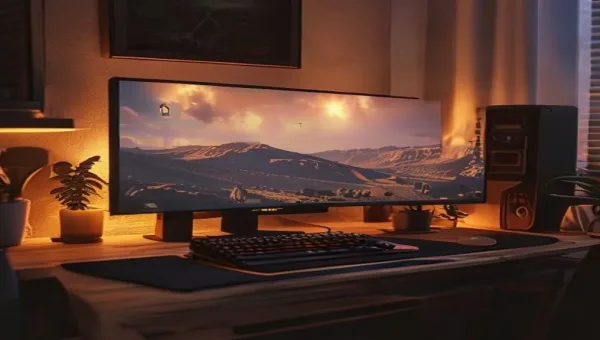
Getting the best monitor settings for Warzone right unlocks the refresh rate and resolution your GPU can actually deliver — starting with confirming Windows is using your monitor correctly. Warzone’s monitor setup is different from Valorant’s in one important way: 1440p is a real competitive option here. In Valorant, almost no professional player runs above 1080p because the game’s CPU-bound architecture means higher resolution trades FPS for visual fidelity that is not worth it. Warzone’s GPU-driven rendering means 1440p is achievable at 144Hz on mid-to-high-end hardware, and the larger map with longer engagement distances makes higher resolution genuinely useful for spotting targets.
📋 Table of Contents
TL;DR: Confirm Windows is running your monitor’s maximum refresh rate. Set Display Mode to Fullscreen Exclusive. Choose 1440p if your GPU can sustain 100+ FPS there, otherwise stay at 1080p. Enable NVIDIA Reflex or AMD Anti-Lag for the most competitive latency setup.
Quick wins if you are in a hurry
- Check your refresh rate in Windows right now: Settings → System → Display → Advanced display settings. Many monitors default to 60Hz on first connection.
- Set Display Mode to Fullscreen Exclusive in Warzone settings. Borderless Window adds Desktop Window Manager latency overhead.
- Cap your FPS to refresh rate minus three (237 for 240Hz, 141 for 144Hz). This prevents frame queue buildup that adds latency.
- Enable NVIDIA Reflex Low Latency → On + Boost if you have an NVIDIA GPU. This is one of the highest-impact single changes for competitive Warzone response.
Setting up the correct refresh rate
Windows does not automatically configure your monitor to its maximum refresh rate. After connecting a new monitor or after a driver update, it frequently defaults to 60Hz regardless of your monitor’s capability. Check it before playing a single Warzone match.

Grab Your 6★ Weapon Before It's Gone!
- Free-to-play strategy
- Optimized for Windows PC

Start With 10,000+ Oroberyls , Hit Play!
- Arknights: Endfield — Free on PC. 10,000
- Oroberyls up for grabs.

Your Squad's Waiting. Jump In Free!
- New Homecoming Expansion: 2 Maps, 2 Operators, 1 Free 6★ Weapon: $0.
- Action RPG - Base Building on PC-Play Free, Keep Your Progress on Mobile.
Navigate to Settings → System → Display → Advanced display settings. The Refresh rate drop-down should show your monitor’s maximum. If it does not, change it now. If the maximum rate does not appear in the list, check your cable — HDMI 2.0 limits 1080p displays to 144Hz and 1440p displays to 60 to 120Hz depending on the specific configuration. DisplayPort 1.4 fully supports 240Hz at 1080p and 1440p and should be your default cable choice for high refresh rate gaming.
My RTX 4070 test system runs a 240Hz monitor. After a recent driver update, Windows reset it to 60Hz without notifying me. Warzone felt choppy for an entire session before I found it. Check after every significant update.
Resolution: 1080p vs 1440p in Warzone specifically
Unlike Valorant where 1080p is nearly universal at the competitive level, Warzone players split more evenly between 1080p and 1440p. Here is why: Warzone’s map is large, engagement distances are longer, and spotting enemies at distance is a more significant part of gameplay. 1440p’s additional pixel density helps with identification at range in ways that matter in Warzone but are less relevant in Valorant’s tighter map design.
The practical question is GPU capability. At competitive Low settings in Warzone, a mid-range GPU like the RTX 3060 Ti delivers around 130 to 160 FPS at 1080p. The same card at 1440p drops to 90 to 110 FPS — still above a 60Hz floor and playable on a 100Hz or 144Hz monitor. If your GPU sustains 100+ FPS at 1440p with competitive settings, the resolution upgrade is worth considering for Warzone specifically.
If your GPU cannot sustain 100 FPS at 1440p, stay at 1080p. Fluid frame delivery matters more than resolution in active combat.
Display Mode: Fullscreen Exclusive
Exclusive Fullscreen removes Desktop Window Manager from the rendering pipeline. DWM adds one frame of compositing latency — approximately 4 to 8ms at 240Hz — that stacks on top of your network and frame latency in Warzone. At high refresh rates where every millisecond of system latency matters, Fullscreen Exclusive is the consistent choice.
The tradeoff: Alt-Tab causes a brief display adapter reset, and some streaming software (OBS, Streamlabs) handles Fullscreen Exclusive differently than Borderless. If you stream Warzone regularly, test your capture setup with Fullscreen Exclusive before committing.
FPS cap: 3 below refresh rate
An uncapped FPS configuration causes Warzone’s render pipeline to queue frames faster than the display can show them. The queue builds up and introduces latency between your input and the displayed frame — paradoxically making uncapped FPS feel less responsive than a properly capped setup.
Set the FPS cap in Warzone’s settings (Settings → Graphics → Max FPS) to your monitor’s refresh rate minus three. For 144Hz monitors: 141. For 240Hz monitors: 237. For 60Hz monitors: 57. Set a separate lower cap for menus to reduce unnecessary GPU heat between matches.
NVIDIA Reflex and AMD Anti-Lag
NVIDIA Reflex is supported natively in Warzone. It synchronizes CPU render submission timing with GPU processing to minimize the pipeline latency that accumulates between your input and the displayed frame. NVIDIA’s own testing shows 30 to 60 percent system latency reduction in CPU-limited scenarios.
Enable it at Settings → Graphics → NVIDIA Reflex Low Latency → On + Boost. “On” enables the synchronization. “Boost” additionally raises GPU clock to ensure the GPU is never the waiting component. On any RTX card paired with a high-refresh-rate monitor, both should be enabled.
AMD users: enable Anti-Lag in Radeon Software, or if Warzone supports Anti-Lag 2, enable it in-game rather than through Radeon Software. Anti-Lag 2 operates at the engine level and provides better latency reduction than the driver-level version.
Color and visibility settings
Warzone’s open environments use a more complex color palette than tactical shooters. The environment includes terrain that blends with player colors, particularly in certain maps. Two display-side settings help without hardware cost.
Digital Vibrance in NVIDIA Control Panel (Manage 3D Settings → Display → Digital Vibrance → 70 to 80 percent) increases color saturation and makes player models and gear stand out more distinctly against Warzone’s environment. AMD users access this in Radeon Software’s display settings. Keep it below 85 percent — above that, the visual result becomes unrealistically saturated and actually makes high-contrast targets harder to read at distance.
In Warzone’s graphics settings, Colorblind Mode (specifically Deuteranopia or Tritanopia) can improve distinction between explosive effects and enemy outlines for some players, regardless of colorblind status. Try Tritanopia for one session and see if enemy visibility feels cleaner.
Common issues and fixes
Issue: 240Hz monitor but the game still feels like 60Hz.
Fix: Check three things in order: Windows refresh rate (Advanced display settings), Warzone FPS cap (must be above 60 in settings), and Display Mode (must be Fullscreen Exclusive, not Borderless). Also verify the cable type — HDMI 2.0 caps at 144Hz on most 1080p displays.
Issue: Switched to 1440p and FPS dropped below 100.
Fix: 1440p is GPU-limited more than 1080p. Lower Shader Quality, Shadow Quality, and Environmental details until FPS recovers above your monitor’s refresh rate. At 1440p, DLSS or FSR can also recover 30 to 50 percent of the resolution cost — enable them in Warzone’s upscaling settings.
Issue: NVIDIA Reflex option is not visible in Warzone settings.
Fix: Reflex requires a GeForce GTX 900 series or newer and NVIDIA drivers from 2020 or later. Update drivers first. If it still does not appear after updating, your GPU is below the minimum supported tier for Reflex.
Frequently asked questions
Is 1440p worth it for competitive Warzone?
Yes, if your GPU can sustain 100+ FPS at 1440p with competitive settings. Warzone’s longer engagement distances make the additional clarity more valuable than in close-quarters games. If you cannot maintain 100 FPS at 1440p, the resolution benefit is outweighed by the responsiveness cost of lower frame rates.
Does Warzone support 360Hz monitors?
Yes, and at very low settings on powerful hardware you can approach those frame rates. The practical target for 360Hz Warzone is an RTX 4080 or RTX 4090 class GPU with a competitive CPU. Most players targeting 240Hz see better value — 240Hz is achievable on mid-high-end hardware that costs significantly less.
Should I use DLSS or FSR in Warzone?
Yes, if you are GPU-limited. DLSS Quality mode on an RTX GPU recovers 30 to 40 percent FPS with minimal visual quality reduction at 1080p and 1440p. FSR Quality mode provides similar gains on AMD GPUs. At competitive settings where maximum sharpness matters, use Quality mode rather than Performance or Ultra Performance.
Best Monitor Settings for Warzone: Final Checklist
- Windows refresh rate confirmed at monitor’s maximum (Advanced display settings)
- DisplayPort cable in use for 240Hz operation
- Display Mode set to Fullscreen Exclusive in Warzone settings
- FPS cap set to refresh rate minus three
- NVIDIA Reflex set to On + Boost (or AMD Anti-Lag enabled)
- Digital Vibrance at 70-80 percent in NVCP or Radeon Software
- Resolution and upscaling verified against GPU’s actual FPS output
Display configuration in Warzone rewards more careful tuning than in lighter competitive games because the GPU-limited nature of the game means resolution and rendering pipeline choices have direct FPS consequences. Get the display setup right first, then tune in-game settings around it. For the full Warzone in-game settings, our Warzone pro settings guide covers both visibility and performance settings together. And if the hardware side needs to grow to match your monitor’s potential, our Warzone PC specs guide explains which components to target first.
Activision’s Warzone PC requirements page covers display and resolution requirements. NVIDIA’s official Warzone guide also covers display mode, Reflex, and DLSS configuration for optimal competitive performance.
Tested by Kade | FPSFlow.com
Hardware: RTX 4070 + Ryzen 7 5800X, 32 GB DDR4 3600MHz, 240Hz IPS monitor via DisplayPort
Last updated: July 2026
Method: Display latency measured using NVIDIA FrameView and LDAT across Fullscreen vs Borderless modes and with NVIDIA Reflex enabled and disabled. Resolution testing compared 1080p and 1440p FPS using MSI Afterburner.