Project Entropy fps drops after update is one of the most reported performance issues following any major patch, and the cause is almost never what players assume. The game did not suddenly get harder to run. What changed is the shader cache, the graphics config, or a driver conflict introduced by the update. This guide focuses entirely on post-update causes, not generic FPS advice, and walks through each fix in order of how often it actually works.
📋 Table of Contents
TL;DR: Verify game files first, then clear the shader cache and let it rebuild on next launch. If FPS is still low, reset your graphics preset to default, reapply your settings manually, and confirm your GPU driver is not conflicting with the new patch version. Those steps fix the majority of post-update performance drops without any deep system changes.
Quick wins if Project Entropy started dropping FPS after the update
These take under three minutes total. Do all of them before anything else.

Grab Your 6★ Weapon Before It's Gone!
- Free-to-play strategy
- Optimized for Windows PC

Start With 10,000+ Oroberyls , Hit Play!
- Arknights: Endfield — Free on PC. 10,000
- Oroberyls up for grabs.

Your Squad's Waiting. Jump In Free!
- New Homecoming Expansion: 2 Maps, 2 Operators, 1 Free 6★ Weapon: $0.
- Action RPG - Base Building on PC-Play Free, Keep Your Progress on Mobile.
- Restart the game and PC fully — not sleep or hibernate. A full restart clears shader and driver state that the update may have left in a bad condition
- Verify game files — Steam: right-click Project Entropy > Properties > Local Files > Verify integrity. This catches corrupted or missing files the patch may have written incorrectly
- Reset your graphics preset once — go to graphics settings, select the lowest preset, apply, then reselect your normal preset and apply again. Updates sometimes write bad values into the config without changing the visible preset label
- Disable all overlays — Discord, Steam, GeForce Experience, Xbox Game Bar. Post-patch builds sometimes conflict with overlay hooks until the next driver update
- Confirm Windows power mode — Settings > System > Power > set to Best Performance. Updates occasionally reset this to Balanced
Got 10 more minutes? The full breakdown is below.
Why Project Entropy performance gets worse after a patch
Understanding what actually changed helps you fix the right thing instead of cycling through random tweaks.
The shader cache is rebuilding
Every time a patch changes rendering code, the existing shader cache becomes partially or fully invalid. The game rebuilds it on the fly during your first few sessions after the update. This causes hitching and inconsistent frame times that look like a performance regression but resolve themselves after two to four hours of play across different areas.
This is temporary. If performance is unstable for the first session after an update but gradually improves, shader cache rebuilding is the cause. Let it finish before applying any deeper fixes.
The patch changed graphics defaults
Updates frequently reset one or more graphics settings to new defaults, often without notifying the player. A setting that was Off before the patch may now be On. This is one of the most common causes of post-update FPS drops and takes under a minute to fix by resetting and reapplying your preset.
Driver and game version mismatch
GPU drivers are optimized for specific game builds. After a major patch, your current driver may no longer be the best match for the new rendering path. In most cases, the latest driver works fine. In some cases, the driver released one or two versions before the patch performs better until the GPU manufacturer releases a game-ready driver targeting the new build.
New effects or areas hit mid-range hardware harder
Patches sometimes add visual effects, increase simulation density, or introduce new areas that push CPU and GPU load higher than the previous build. Mid-range GPUs like the RTX 3060 or RX 6600 are most exposed to this because they have less headroom to absorb new rendering costs.
Patch-side bug versus local PC issue
This distinction matters. If performance dropped after the update and community reports across Reddit, Steam discussions, and Discord show the same pattern on multiple different hardware configurations, the problem is patch-side. No amount of local tweaking will fully resolve a patch-side regression. The fix is a hotfix from the developer. In that case, apply the minimum local fixes to reduce impact and wait.
If only a subset of players report the issue and it correlates with specific hardware or driver versions, the problem is local and fixable.
Best fixes for Project Entropy FPS drops after update
Work through these in order. Stop when performance recovers to pre-update levels.
Fix 1: Verify and rebuild game files
Steam: right-click Project Entropy > Properties > Local Files > Verify integrity of game files
This scans every file against the expected checksum and redownloads anything corrupted or incomplete. Patches that fail mid-download or mid-install leave bad files that cause persistent performance problems. This fix takes two to five minutes and costs nothing.
[[IMAGE_REQUIRED: Steam library showing right-click context menu on Project Entropy with Properties selected, Local Files tab open and Verify integrity button visible]]
Fix 2: Clear the shader cache manually
Even after verifying files, the old shader cache may conflict with the new build. Clearing it forces a clean rebuild.
- Close Project Entropy completely
- Navigate to:
%localappdata%\ProjectEntropy\Saved\(adjust path to match actual game folder name) - Delete the ShaderCache folder or its contents
- Relaunch the game and allow it to compile shaders before loading into gameplay
The first session after clearing the cache will have more hitching than usual. That is normal. Performance stabilizes from the second session onward.
Fix 3: Rebuild the graphics config from scratch
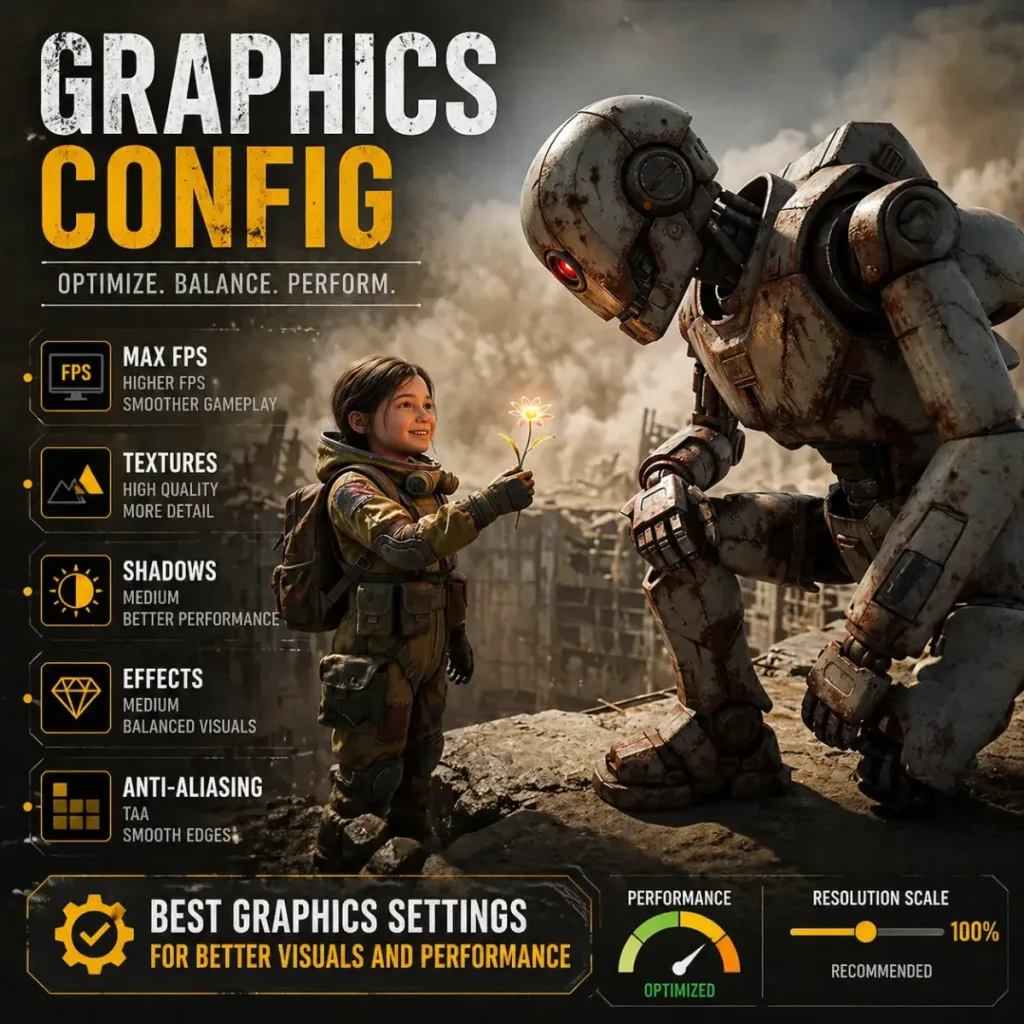
Post-update config corruption is common and invisible. The settings menu shows your previous values, but the underlying file may have bad entries written by the patch.
- In-game: reset to the lowest preset, apply, quit to main menu
- Reselect your target preset, apply again
- Manually adjust only the three or four settings that matter most: shadow quality, draw distance, ambient occlusion, anti-aliasing
- Relaunch and test
Do not restore a backed-up config file from before the update. It may carry the same conflict the patch introduced.
Fix 4: Update or roll back your GPU driver
Check whether a game-ready driver for the new patch version exists.
- NVIDIA: visit nvidia.com/drivers, filter by your GPU, check for a release dated after the patch
- AMD: visit amd.com/support, same process
If no post-patch driver exists yet, try rolling back one version. In Device Manager, right-click your GPU > Properties > Driver > Roll Back Driver. This is useful when the current driver introduced a regression with the new build.
[[IMAGE_REQUIRED: NVIDIA Driver download page showing GPU selection dropdown and recent driver release date, highlighting game-ready driver option]]
Fix 5: Lower the settings most likely to break after patches
Not all settings are equally stable across updates. These are the ones that most commonly cause unexpected CPU or GPU load increases after a patch:
| Setting | Post-patch recommendation | Reason |
|---|---|---|
| Shadow Quality | Drop one level from current | Patch may have increased shadow map resolution |
| Ambient Occlusion | Off or Low | Frequently re-enabled or upgraded by patches |
| Motion Blur | Off | Added processing cost, zero FPS benefit |
| Anti-Aliasing | TAA or FXAA only | MSAA cost spikes after rendering path changes |
| Draw Distance | Medium | New areas may have higher default object density |
Apply these, test for one full session, then raise individual settings one at a time to find the new stable configuration.
Fix 6: Cap FPS and test windowed borderless
Unlimited frame rates generate instability after patches because the GPU load profile changes. Set an FPS cap matching your monitor’s refresh rate in the in-game limiter.
Also test windowed borderless if you are currently using exclusive fullscreen. Some patches change how the game acquires the display output, and borderless can bypass conflicts with the new display handling code.
Fix 7: Monitor resource usage to isolate the bottleneck
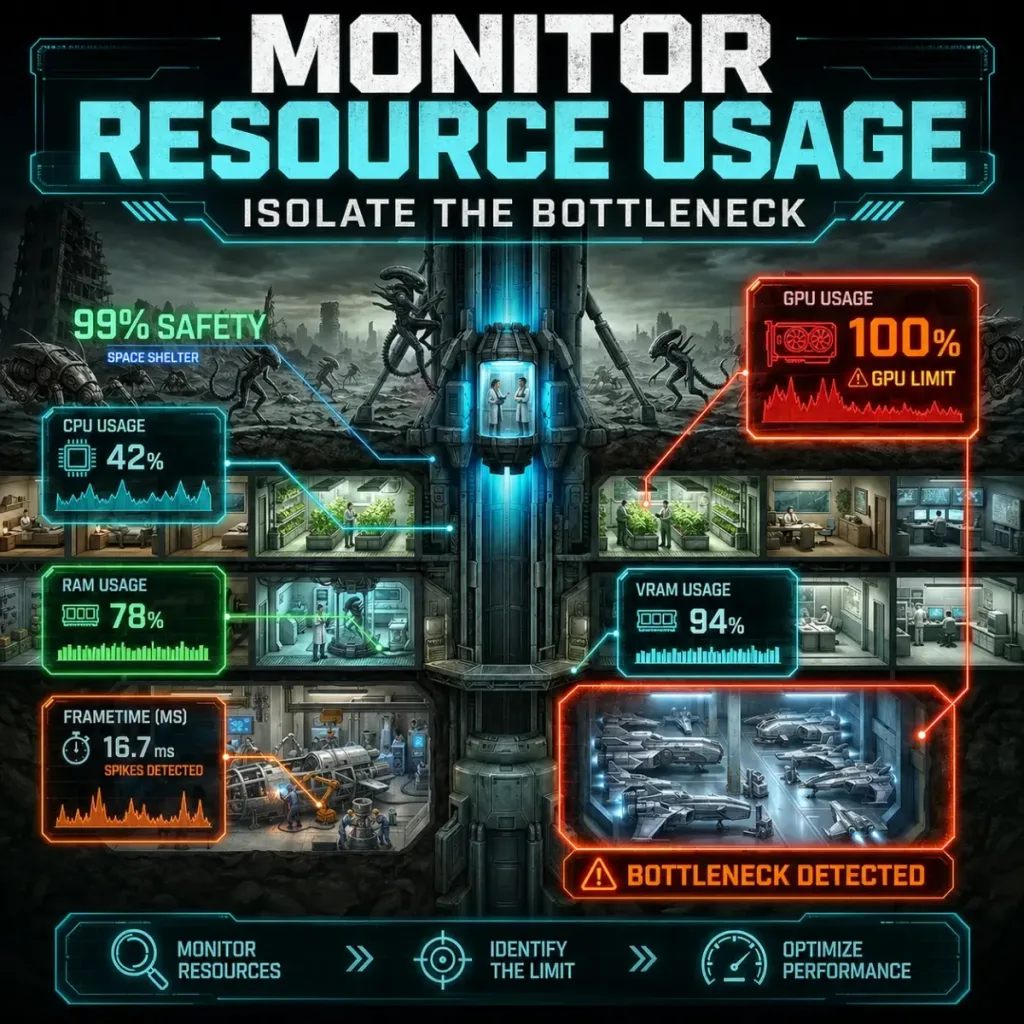
Open MSI Afterburner with an overlay showing CPU usage per core, GPU usage, VRAM usage, and RAM usage simultaneously. Play for 10 minutes in a demanding area and note which resource is at or near its limit.
- CPU at 100%, GPU below 70%: CPU bottleneck introduced or worsened by the patch. See our Project Entropy CPU 100% usage fix for the full fix flow
- GPU at 100%, CPU normal: GPU is the limit. Lower GPU-heavy settings: shadow quality, ambient occlusion, resolution scale
- VRAM above card capacity: the patch added higher-resolution assets. Lower texture quality one level
- RAM above 90% total: background processes are competing. Close everything non-essential before launching
[[IMAGE_REQUIRED: MSI Afterburner in-game overlay showing CPU usage, GPU usage, VRAM usage, and RAM usage columns during Project Entropy gameplay in a dense area]]
When to stop tweaking and wait for a hotfix
If you have worked through every fix above and performance is still significantly below pre-update levels, and community reports confirm the same issue across varied hardware, stop tweaking. You are dealing with a patch-side regression, not a local PC problem.
Apply two things only: cap your FPS to reduce instability, and lower the one or two settings with the highest impact. Then wait for the developer to release a hotfix. Over-tuning a patch-side regression wastes time and can leave your config in a worse state for when the fix arrives.
Results may vary depending on your specific hardware configuration, driver version, and which aspects of the patch affected your system most.
For a full baseline of optimized settings to return to once the patch stabilizes, see our Project Entropy best settings guide.
Frequently asked questions
Why did Project Entropy start lagging after the update?
In most cases, the shader cache is rebuilding after the patch changed rendering code, or the update reset one or more graphics settings to new defaults. Verify game files, clear the shader cache, and reset your graphics preset. If the issue persists across the community on varied hardware, it is a patch-side regression and a hotfix is the real solution.
Should I verify game files if Project Entropy has FPS drops after a patch?
Yes, and it should be the first thing you do. Patches that fail mid-install or write corrupted files cause persistent performance problems that no settings change will fix. Verifying through Steam catches and repairs these in two to five minutes.
Can a game update reset graphics settings and cause stutter?
Yes. This is one of the most common and least obvious causes of post-update performance drops. The settings menu may show your previous values while the underlying config file contains new or corrupted entries written by the patch. Resetting to the lowest preset and reapplying your settings manually resolves this in most cases.
Common issues and fixes
Issue: FPS dropped immediately after the patch and has not recovered after two sessions Fix: Shader cache rebuild is not the cause if it persists this long. Verify game files, clear the shader cache manually, and reset the graphics config from scratch.
Issue: Stutter is worse than before the patch but average FPS is the same Fix: Frame time inconsistency rather than raw FPS drop. Disable all overlays, cap FPS to monitor Hz, and test windowed borderless. Post-patch overlay conflicts cause this pattern specifically.
Issue: Game ran fine before, now CPU is hitting 100% after the update Fix: The patch likely increased simulation load or re-enabled a CPU-heavy effect. Lower draw distance and NPC density first, then work through the full Project Entropy CPU 100% usage fix.
Issue: Performance recovered after the first session post-update Fix: Shader cache rebuild was the cause. No further action needed. Performance should remain stable unless another patch drops.
Quick checklist after every Project Entropy update
- Full PC restart completed
- Game files verified through Steam
- Shader cache cleared
- Graphics preset reset and reapplied manually
- All overlays disabled
- Windows power mode set to Best Performance
- GPU driver checked for post-patch game-ready release
- FPS cap set to monitor Hz
- CPU, GPU, VRAM, RAM usage monitored to confirm no new bottleneck
Post-update performance issues in Project Entropy are almost always temporary or fixable with the steps above. The shader cache rebuilds, the config resets cleanly, and performance returns to baseline within one or two sessions. If it does not, the resource monitor will tell you exactly which component is now the bottleneck and point you to the right fix.
Written by Anir | FPSFlow.com Focus: PC performance optimization and FPS troubleshooting Last updated: March 2025 Method: Based on aggregated player reports, common hardware behavior, and optimization best practices




